MisterPlan plugin for WordPress
How to install the plugin, create booking engines, search widgets and sales panels, and add them to your website step by step.
In this guide
Getting started
Engines and search widgets
Help
01 · GETTING STARTED
Introduction
With this plugin you can add MisterPlan booking engines to your WordPress website without touching any code.
To use it you need an active MisterPlan service. Find out more at misterplan.es.
If you'd rather watch a video, here's an overview of the plugin.
Tip
Always keep the plugin up to date: each release fixes bugs and improves compatibility with third-party themes and plugins.
02 · GETTING STARTED
Install the plugin
The plugin is available in the official WordPress plugin directory.
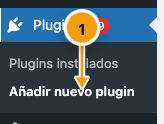
In your WordPress dashboard, go to Plugins › Add New Plugin.
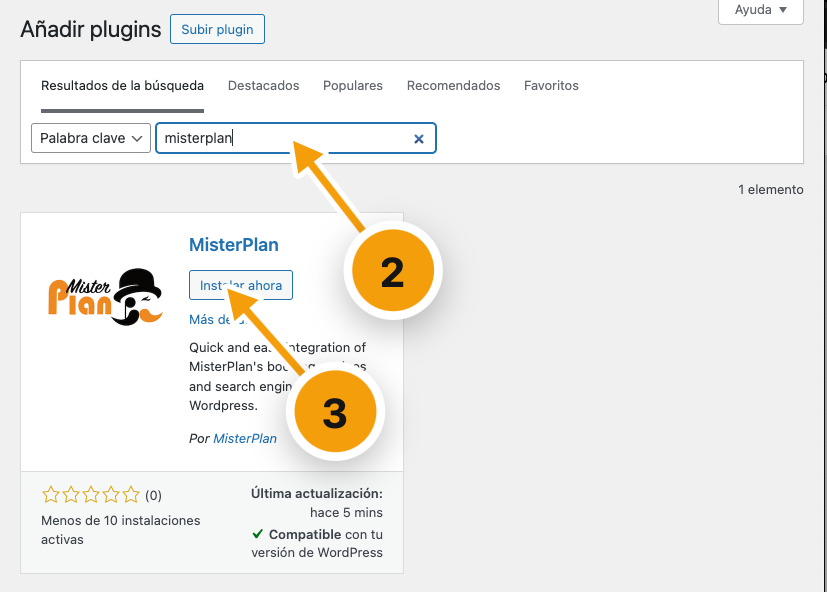
Search for «MisterPlan».
Click Install Now.
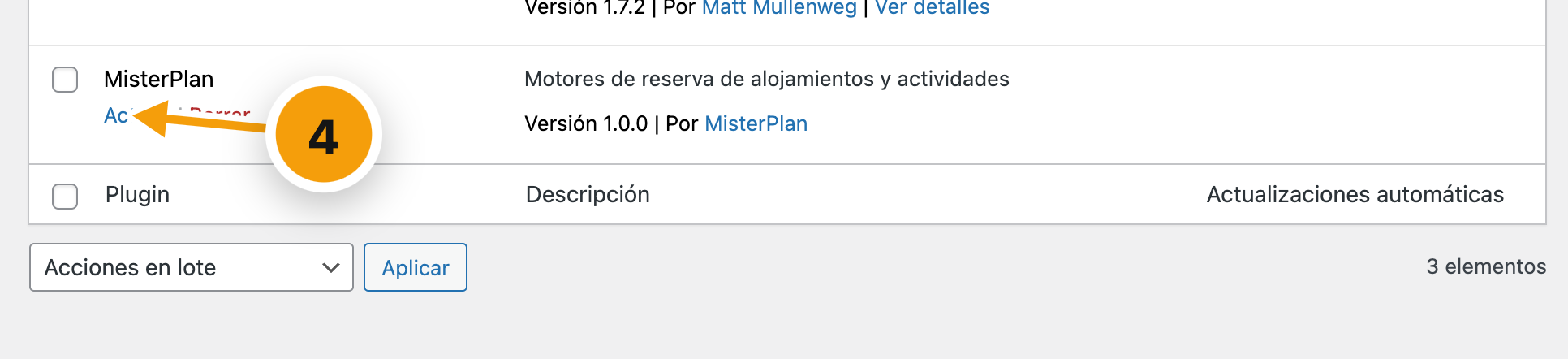
Go to Installed Plugins and click Activate on the MisterPlan plugin.
Note
You can also download it from wordpress.org/plugins/misterplan and install it manually.
03 · GETTING STARTED
Create the confirmation page
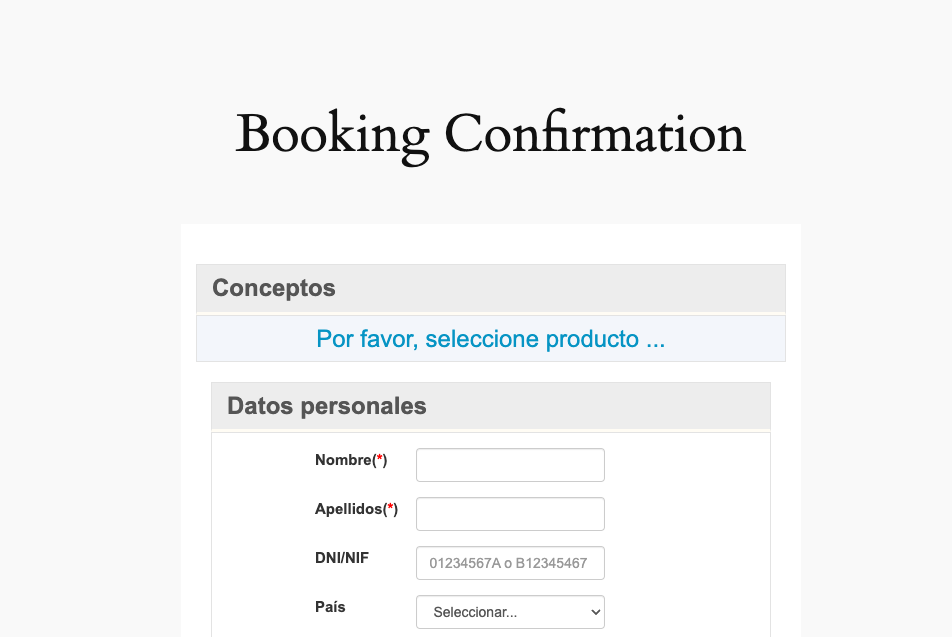
This is the public page where customers enter their details, pay and confirm their booking. Without it, the engines won't work.
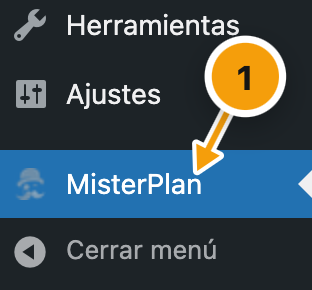
Open the plugin from the WordPress sidebar menu: MisterPlan.
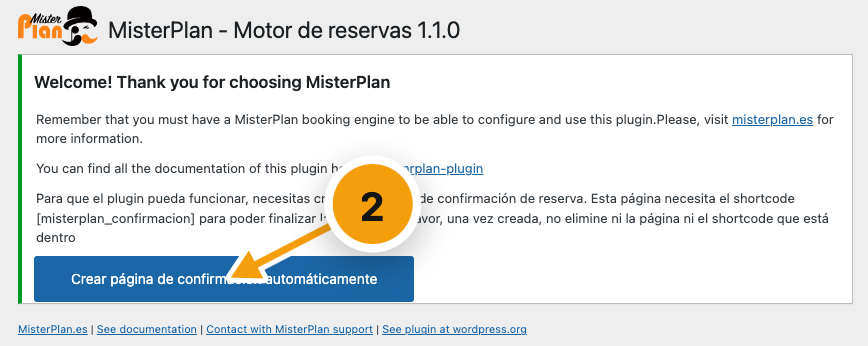
Click Create confirmation page automatically.
The buttons Edit and View will appear so you can open the new page.
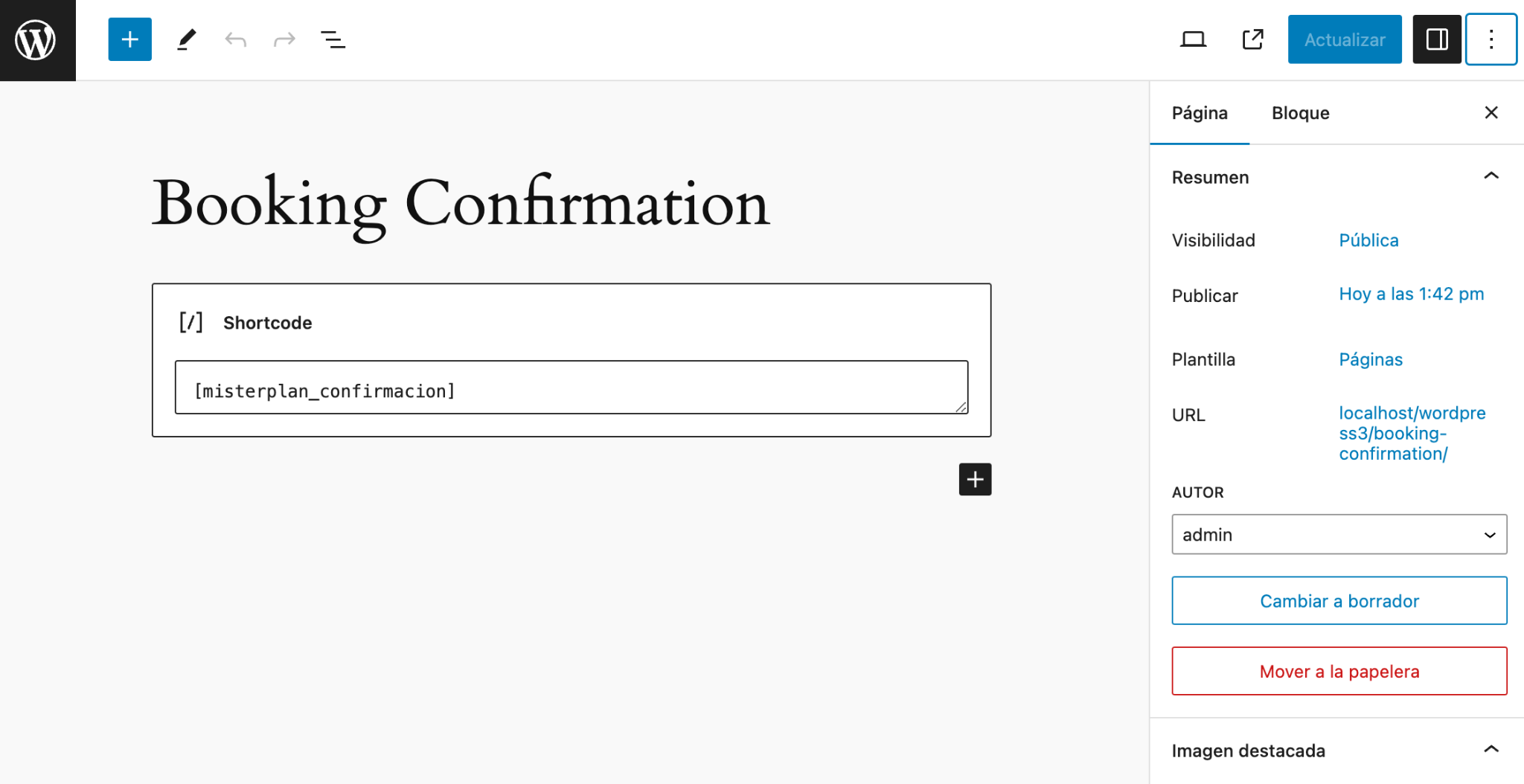
The page contains a shortcode that displays the confirmation. You can change the URL, title or content, but don't delete the shortcode.
Important
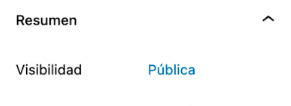
The page visibility must be set to Public. Otherwise, nobody will be able to complete a booking.

04 · ENGINES AND SEARCH WIDGETS
Create a booking engine
Once the confirmation page is ready, you can create booking engines, search widgets and sales panels.
On the plugin page, click Create new booking engine for accommodation or … for activities.
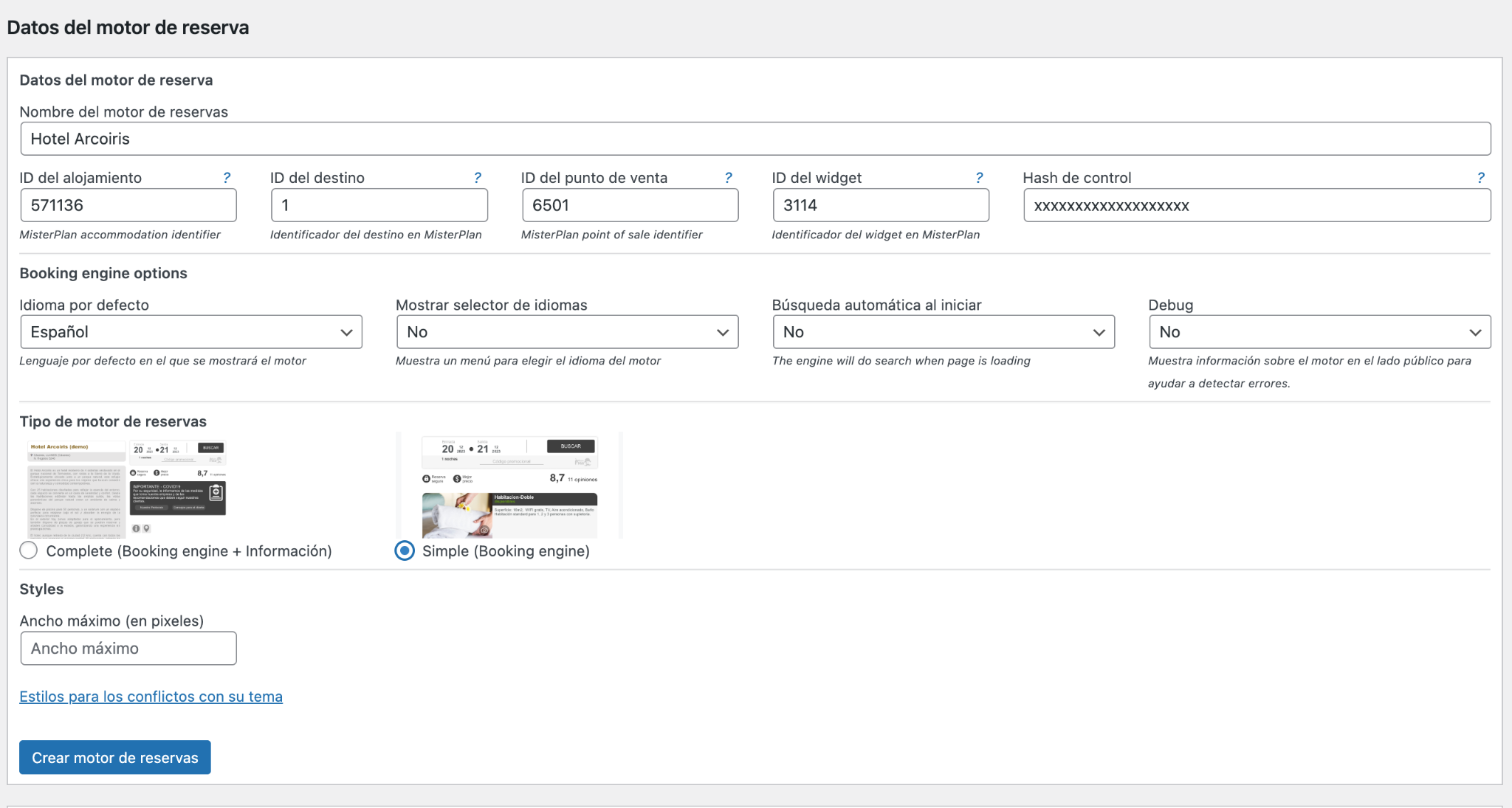
Fill in the form with the details provided by MisterPlan (accommodation or activity ID, destination ID, point of sale ID, widget ID and control hash) and give it a name so you can identify it.
Click Create booking engine.
The engine appears on the plugin page. From there you can change its settings or see how to embed it.



05 · ENGINES AND SEARCH WIDGETS
Accommodation engine
MisterPlan will give you these details to enter in the configurator:
- Accommodation ID
- Destination ID
- Point of sale ID
- Widget ID
- Control hash

Settings
- Default language
- The language the engine opens in. You can set one or let the plugin use the visitor's browser language. If that language isn't available, it's shown in English.
- Show language selector
- Displays a selector above the engine so customers can switch language.
- Automatic search on load
- When the page opens, the engine shows results straight away for a preset date (or the customer's last search).
- Show photo carousel
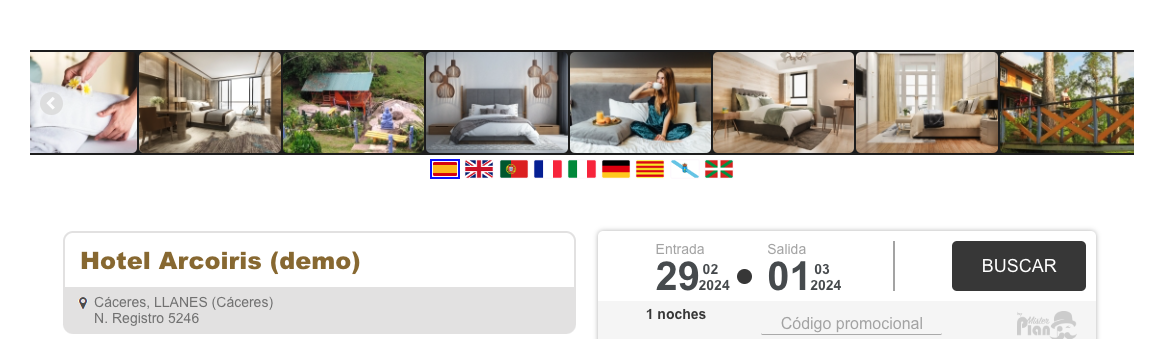
- Displays the accommodation's photos above the engine. Full engine type only.
- Default date
- The date the engine opens with: tomorrow, the day after tomorrow or the next weekday of your choice. If not set, today (or the last date searched).
- Number of nights
- Nights selected by default.
- Room ID
- Limits the engine to a group of rooms. Recommended with the simple engine: the full one still shows information for the whole property.
Note
«Default date» and «Number of nights» may not work properly if you use caching plugins.

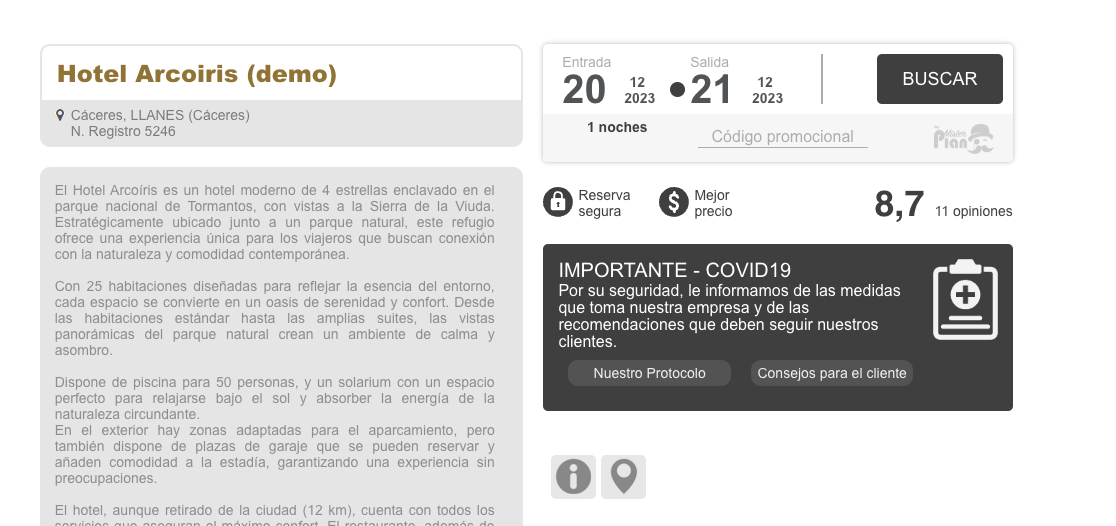
Engine type
FULL
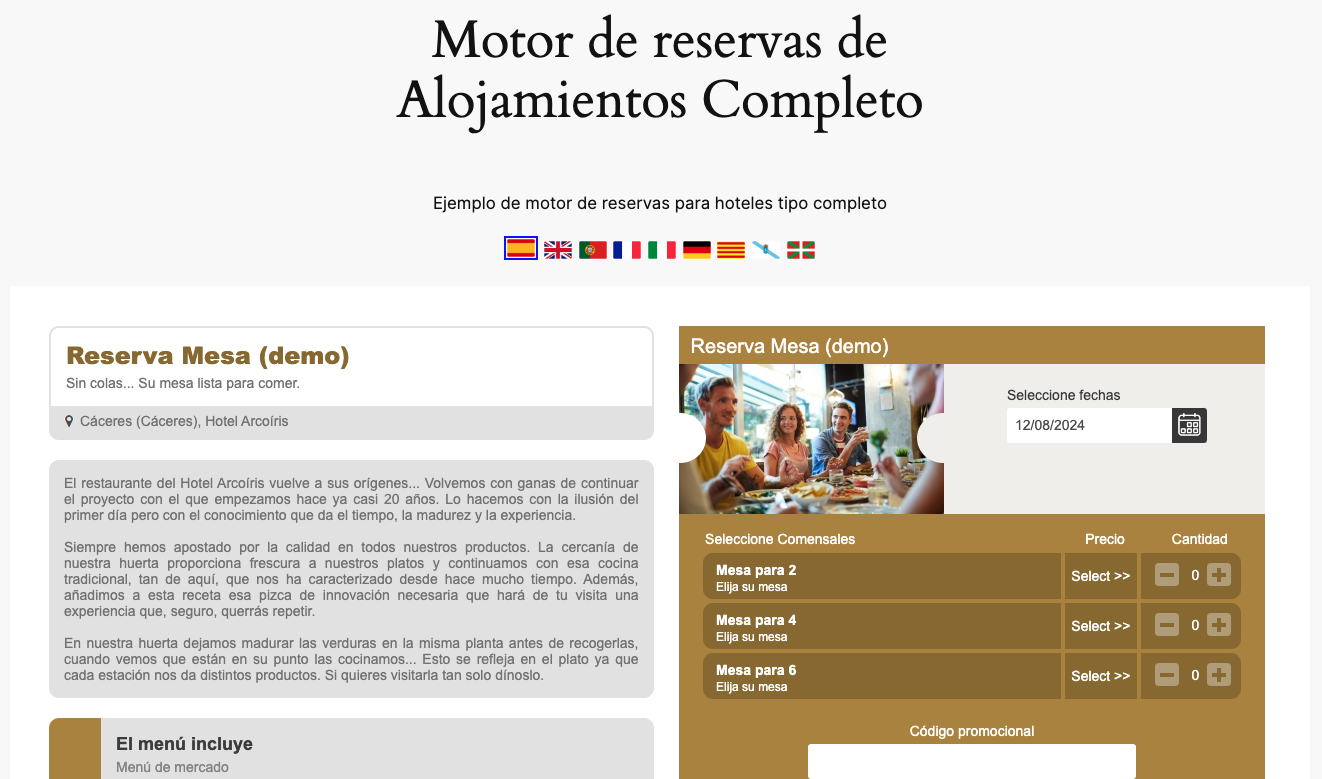
Left: all the property information; right: the availability search and results.
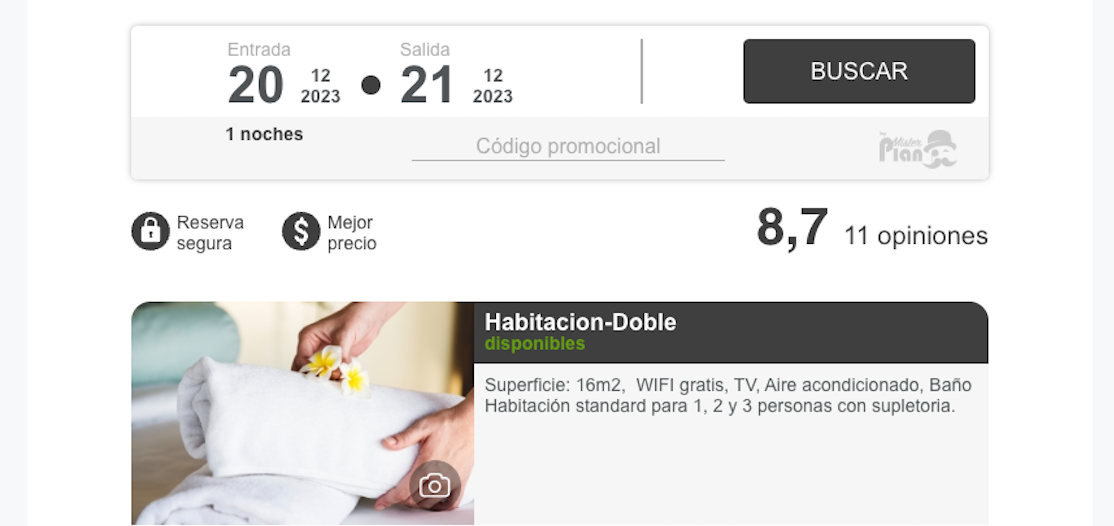
SIMPLE · RECOMMENDED
Just the availability search and results.
You can create as many engines as you like, for one or several properties and with different settings: for example, the full engine on one page and the simple one on another.
Advanced settings
- Strict results
- Only shows results that exactly match the number of guests searched.
- Minimum / maximum occupancy
- Default values for the guest selector. For the maximum, always enter one place fewer than the property's actual capacity.
- Hide children
- Shows or hides the children selector.
- Engine loading type
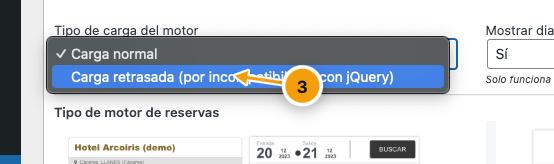
- If the engine doesn't appear on the public page, change the Engine loading type to «Delayed load (due to jQuery incompatibility)». It tries to automatically resolve JavaScript conflicts with other plugins and themes. If it still doesn't show, contact MisterPlan.
06 · ENGINES AND SEARCH WIDGETS
Activities engine
MisterPlan will give you these details to enter in the configurator:
- Activity ID
- Destination ID
- Point of sale ID
- Widget ID
- Control hash

Settings
- Default language
- The language the engine opens in. You can set one or let the plugin use the visitor's browser language. If that language isn't available, it's shown in English.
- Show language selector
- Displays a selector above the engine so customers can switch language.
- Automatic search on load
- When the page opens, the engine shows results straight away for a preset date (or the customer's last search).
- Show photo carousel
- Displays the activity's photos above the engine. Full engine type only.
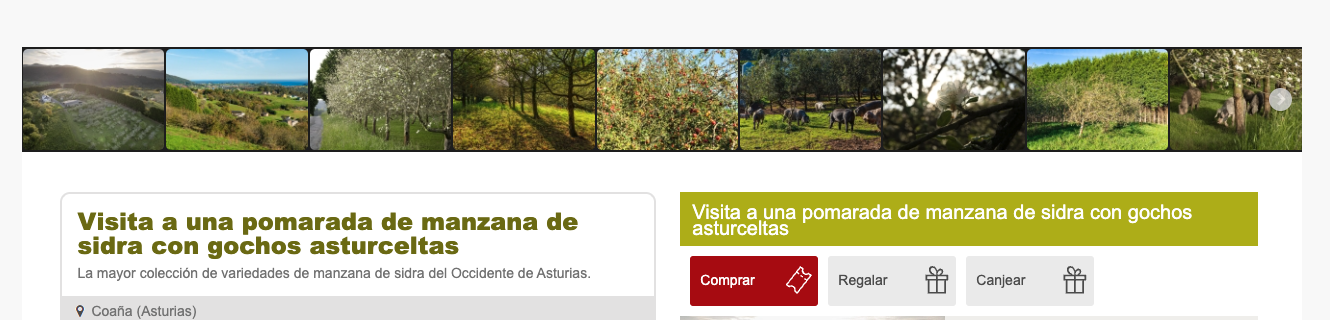
Engine type
FULL
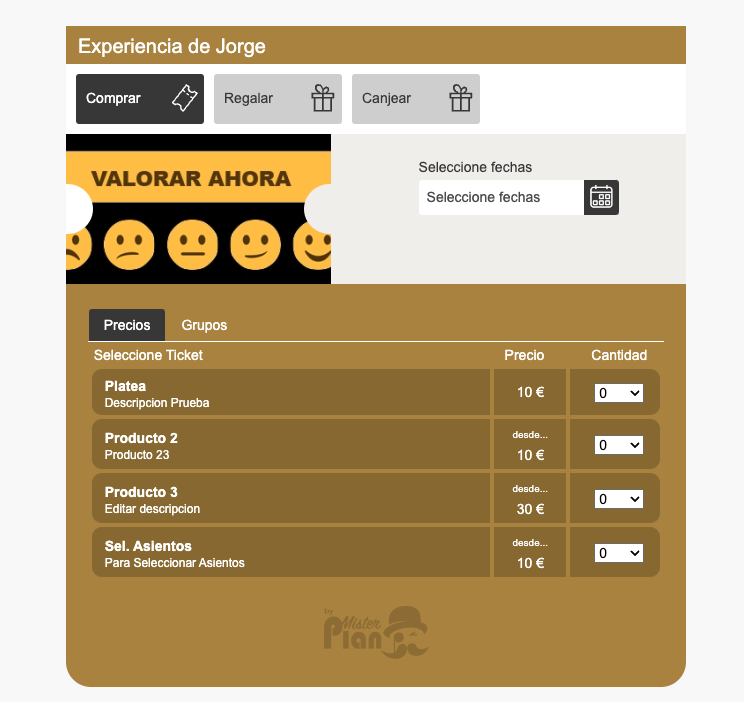
Left: all the activity information; right: the availability search and results.
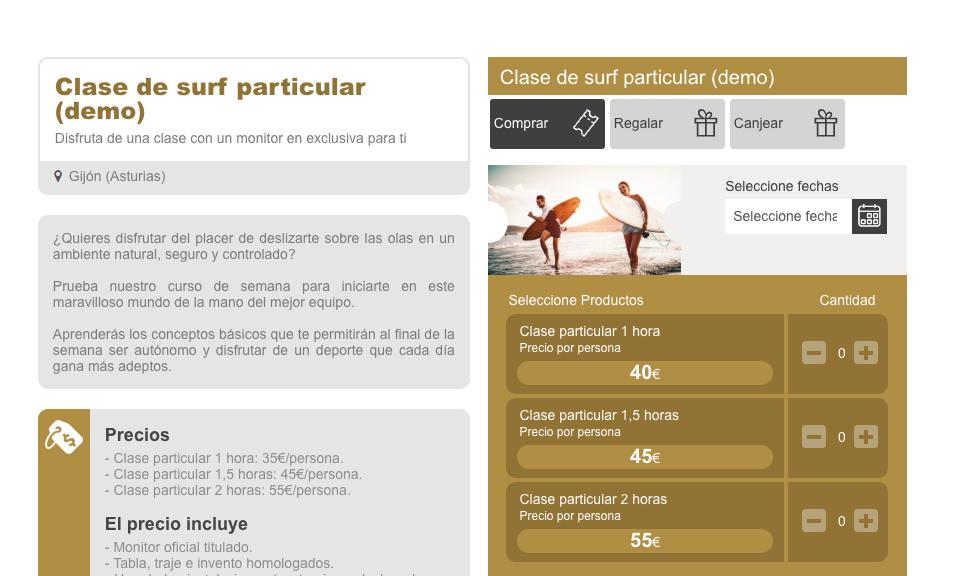
SIMPLE
Just the availability search and results.
Just like with accommodation, you can create as many engines as you like with different settings.
Advanced settings
- Engine loading type
- If the engine doesn't appear on the public page, change the Engine loading type to «Delayed load (due to jQuery incompatibility)». It tries to automatically resolve JavaScript conflicts with other plugins and themes. If it still doesn't show, contact MisterPlan.
07 · ENGINES AND SEARCH WIDGETS
Search widget
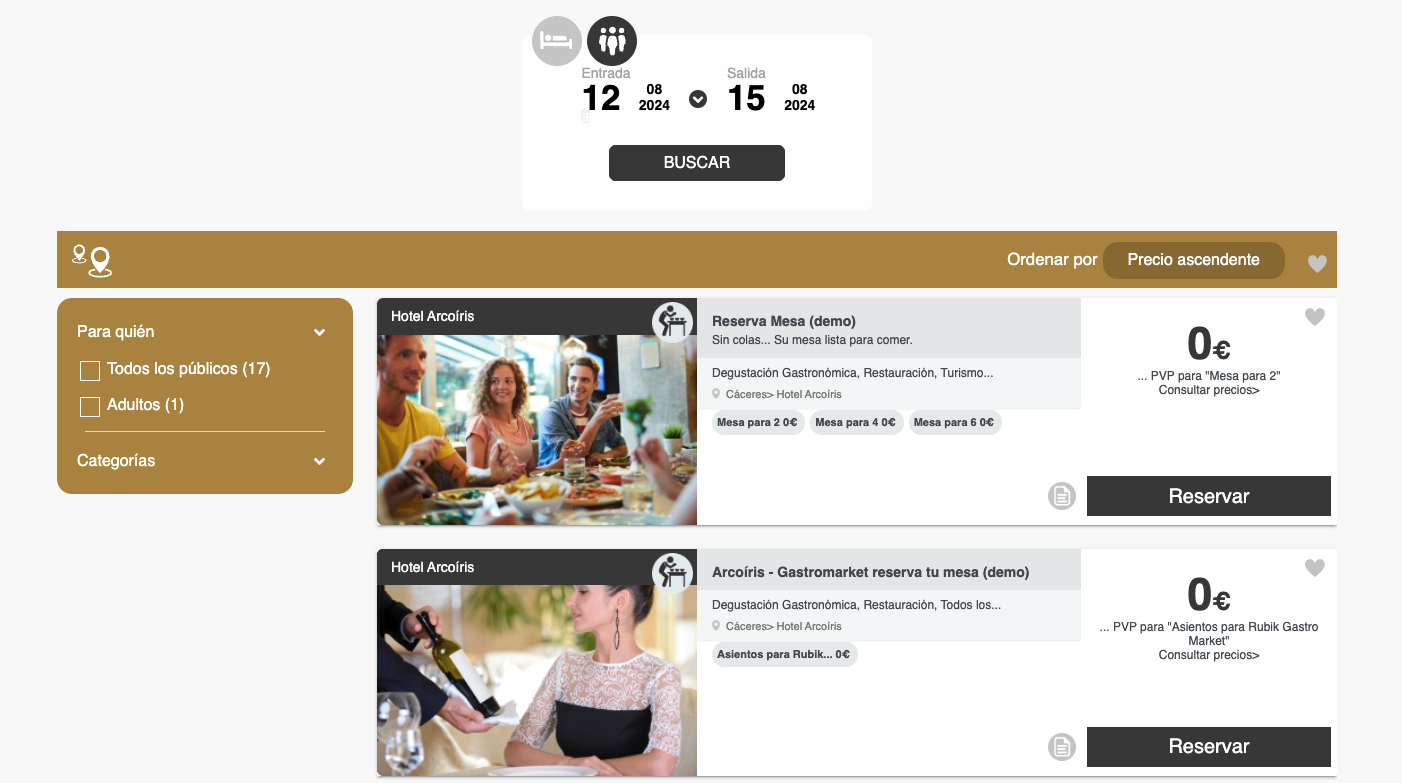
Shows availability and prices for all the properties or experiences in your destination. Clicking «Book» takes visitors to the page with your engine.
Important
Before creating a search widget you need an accommodation or activities engine running on a page of your WordPress site.
Example: the /bookings page holds the engine (ideally the full one) and another page holds the search widget, set to send visitors to /bookings.
Details provided by MisterPlan:
- Destination ID
- Point of sale ID

Settings
- Default language
- The language the engine opens in. You can set one or let the plugin use the visitor's browser language. If that language isn't available, it's shown in English.
- Show language selector
- Displays a selector above the engine so customers can switch language.
- Automatic search on load
- When the page opens, the engine shows results straight away for a preset date (or the customer's last search).
- Show agency selector
- Adds a filter by agency.
- Show location selector
- Adds a filter by location.
- Destination page
- The most important setting. Choose a page on your WordPress site with an embedded MisterPlan booking engine created with the plugin. Pages where the engine was pasted as HTML code don't appear in the list. If the list is empty, create a page with an engine first. We recommend an engine of type Full. When a result is selected, that page opens with the property or activity already loaded.

08 · ENGINES AND SEARCH WIDGETS
Date picker
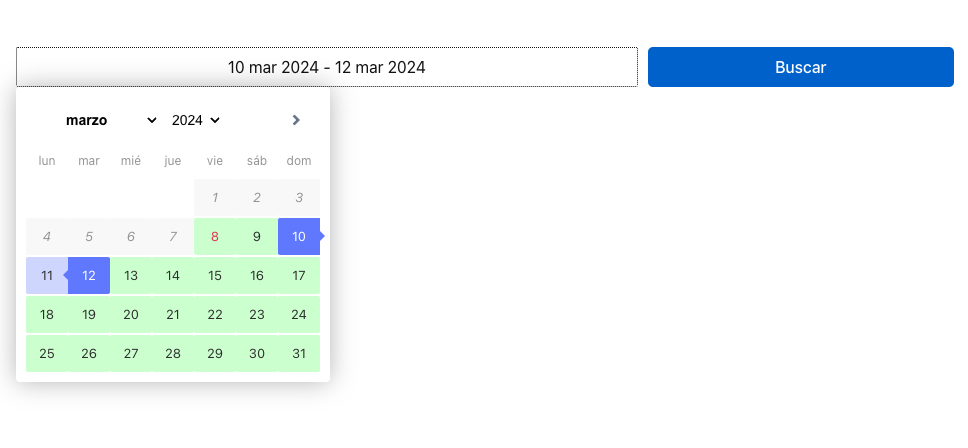
A simple date picker for a single property or activity that leads to the engine without loading it on the page. It also shows availability.
Important
You need an accommodation or activities engine running on a page, and that engine must be of type Full: with the simple engine, dates aren't picked up correctly.
To set it up, enter:
- Accommodation or activity ID
- Destination ID
- Point of sale
- Engine page
- Type: accommodation or activities
For accommodation you pick a range (check-in and check-out); for activities, a single date.
To search across several properties or activities, use a Search widget.
It's embedded like the others: by creating a page or pasting its shortcode.
Customise the look
If you know CSS, you can add styles in the field provided. These are the selectors:
Date field
#MrPlanPlugin_DateRangePicker {
  …
}
Button
#MrPlanPlugin_SimpleSearchBtn {
  …
}
09 · ENGINES AND SEARCH WIDGETS
Sales panel
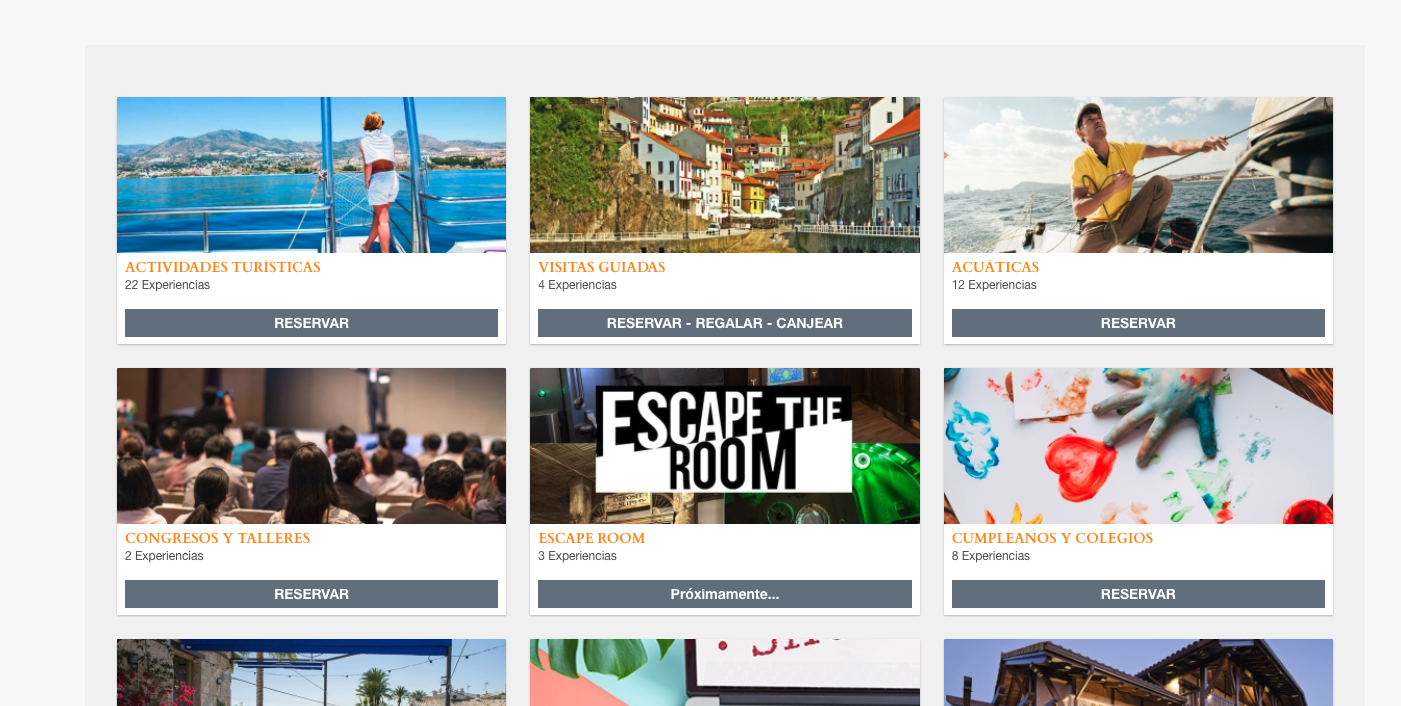
Shows all your experiences on a single page. It's the only element MisterPlan needs to finish configuring after you create it.
Important
You need an activities engine running on a page of your WordPress site.
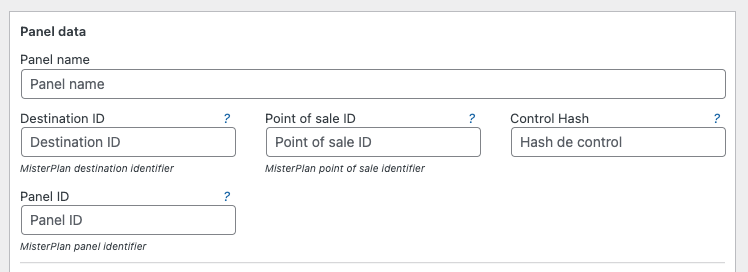
Details provided by MisterPlan:
- Destination ID
- Point of sale ID
- Sales panel ID
- Control hash
Settings
- Default language
- The language the panel opens in. You can set one or use the visitor's browser language.
- Booking engine page
- Essential. Choose a page on your WordPress site with an embedded MisterPlan activities engine created with the plugin. Pages where the engine was pasted as HTML code don't appear in the list. If the list is empty, create a page with an engine first. We recommend an engine of type Full.
Create the panel and embed it on a page.
Send the URL of that page to MisterPlan support so they can finish the setup.
10 · INTEGRATION
Create a page automatically
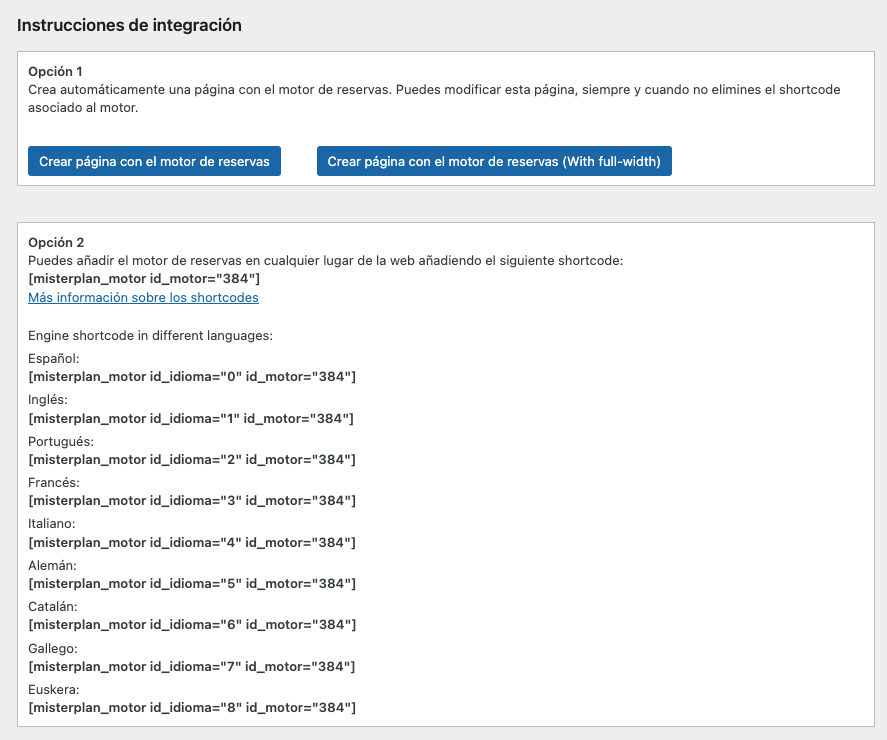
When you create an engine, search widget or panel, integration instructions with two options appear at the bottom.
The first option creates a page with the engine already embedded. By default it takes the engine's name; you can change the title and add content, but don't delete the shortcode.
Create page with the booking engine: standard version.
… (With full-width): the engine spans the full width, if your theme allows it.
Remember
The page is created as a draft. Publish it so your customers can see it.

11 · INTEGRATION
Add the engine with a shortcode
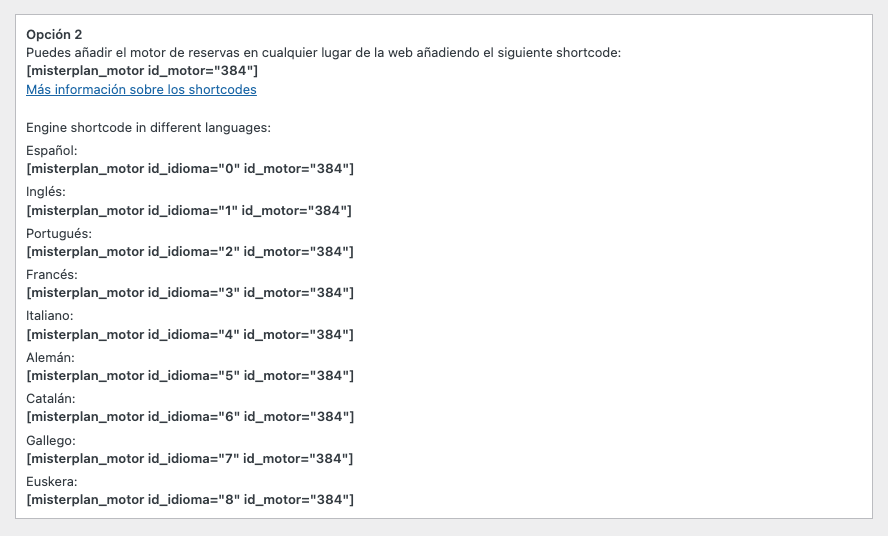
The integration instructions include a shortcode you can use to place the engine anywhere on your website.
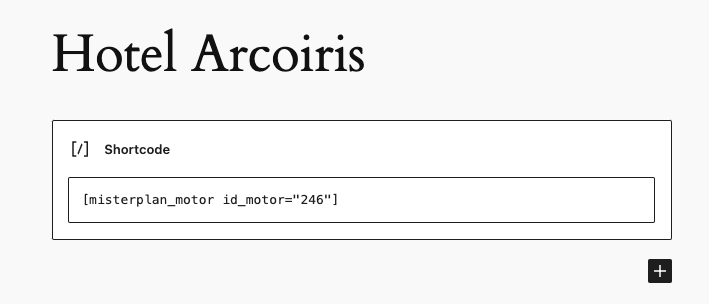
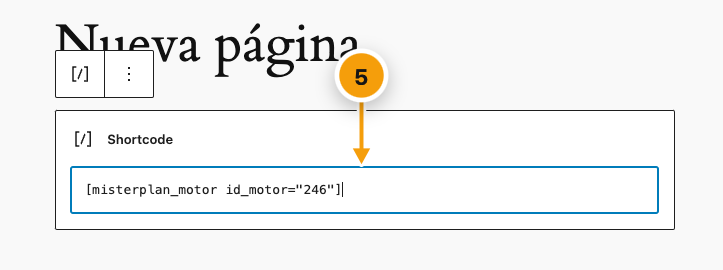
[misterplan_motor id_motor="246"]Copy the engine's shortcode.
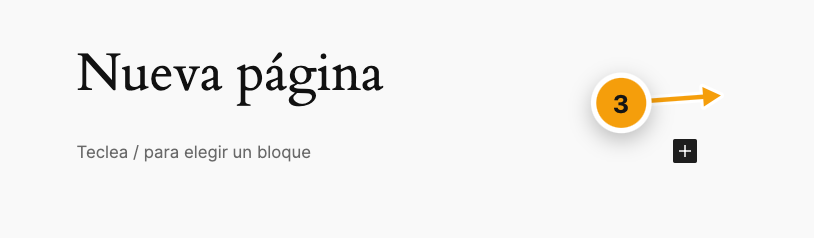
Open an existing page or create a new one.
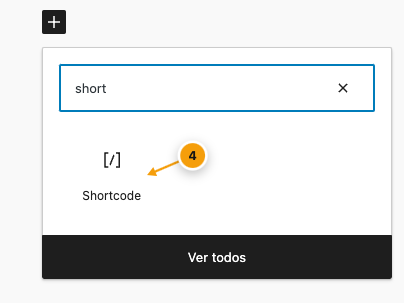
Add a block with the button +.
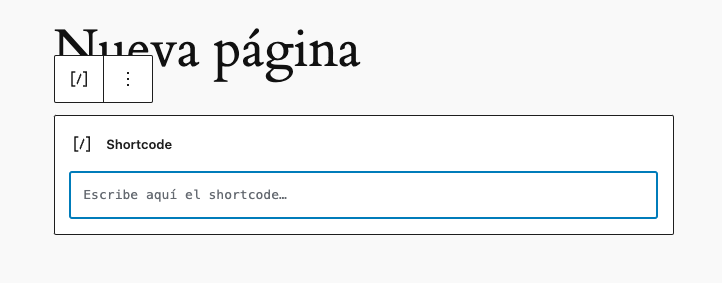
Search for «shortcode» and add it.
Paste the code where it says «Type shortcode here».
Save. The page now has the engine embedded.
Engine in another default language
There's a different shortcode for each language you want the engine to open in. You'll find them in the same integration instructions.
12 · INTEGRATION
Booking engine with POS
Note
If your engine has an integrated payment gateway (POS), send MisterPlan support the URL of your confirmation page. That way, after paying, customers are correctly returned to your website.
13 · COMPATIBILITY
Style conflicts
The plugin works with the main WordPress themes, but some may alter its appearance. You can fix this with CSS in two ways:
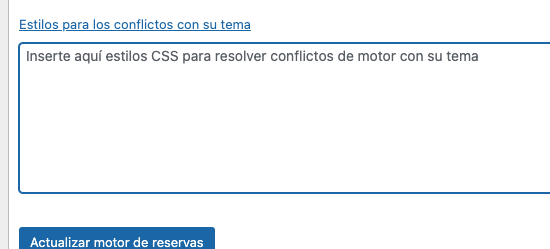
In the Styles for conflicts with your theme field of each engine. They load right before the engine.
In your theme's styles, under Appearance. Recommended.

14 · COMPATIBILITY
Problematic plugins and themes
These themes and plugins can be made to work, but their settings need adjusting.
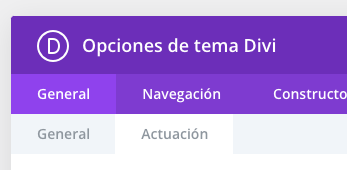
- Divi theme
- In the theme options, turn off «Defer jQuery and jQuery Migrate».
- Slider Revolution
- For sliders to work on the same page as an engine, choose in the engine settings «Delayed load (due to jQuery incompatibility)».
- Elementor
- Compatible. MisterPlan shortcodes appear disabled in the editor. See chapter 15.
- WP-Rocket
- May cause issues. See chapter 16.
- Headers Security Advanced & HSTS WP
- May fail with some engines, especially with a shopping cart. For now the only fix is to deactivate it.
- Simply Schedule Appointments
- Not compatible. If it's installed, the MisterPlan plugin won't work.

Still having problems?
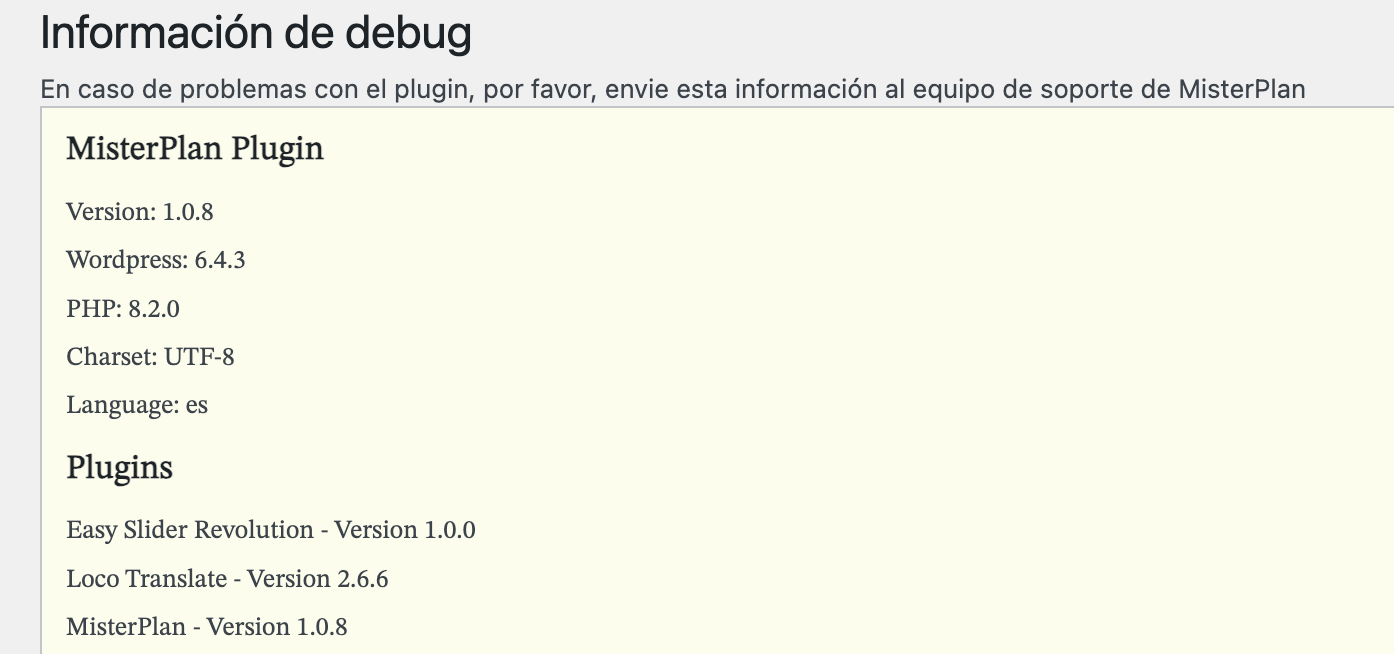
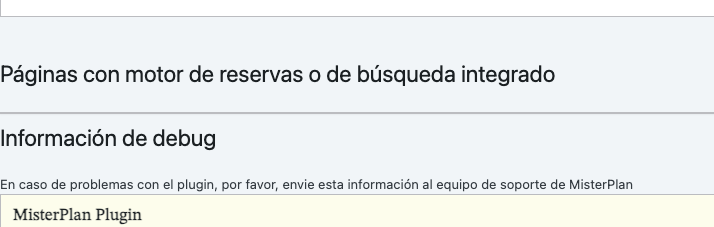
Contact MisterPlan support. The plugin's main page has a Debug information section: send it along with a URL where the embedded engine can be seen.
15 · COMPATIBILITY
Working with Elementor
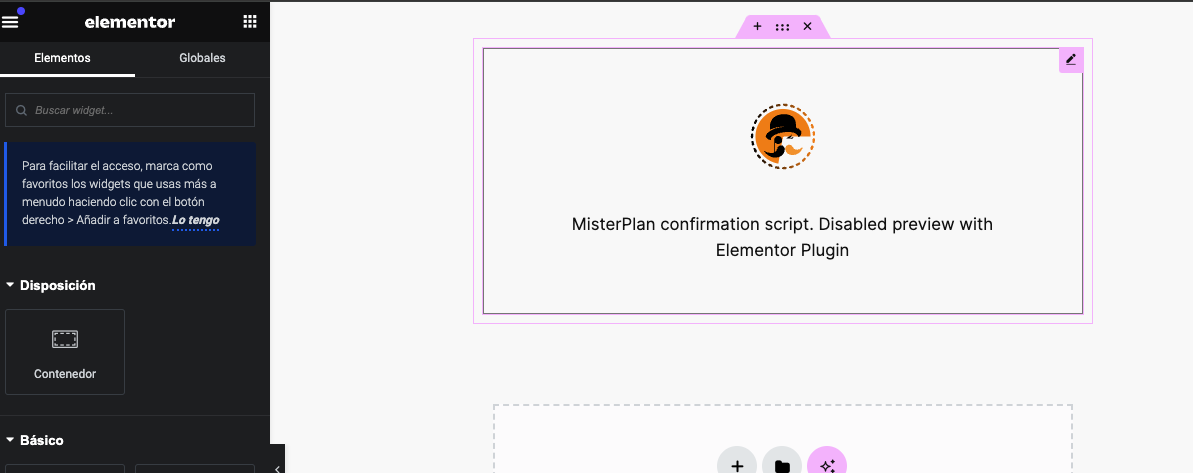
When you edit pages containing an engine or the confirmation page with Elementor, MisterPlan shortcodes appear disabled.
If the editor still gives you trouble:
Turn on Elementor's Safe Mode: Elementor › Tools › Safe Mode.
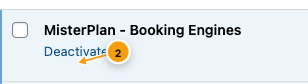
Or temporarily deactivate the MisterPlan plugin while you edit. The shortcodes will show as plain text: don't delete them. When you're done, reactivate it.
Note
Deactivating the plugin doesn't delete your engines or the confirmation page. But while it's deactivated, the engines won't work on your website.

16 · COMPATIBILITY
Conflicts with WP-Rocket
The plugin may fail if WP-Rocket's LazyLoad option is enabled.
Check whether WP-Rocket is the cause
Add ?nowprocket to the URL of the page with the engine.
Reload. If the engine now works, WP-Rocket is the problem.
More information in the WP-Rocket documentation.
Solution
According to the WP-Rocket documentation, you have two options:
Turn off LazyLoad in WP-Rocket.
Add the domain mrplan.io to the exclusion list.
17 · COMPATIBILITY
Salient theme
We've found many issues with this theme, especially when creating the confirmation page and engines. It's marked as not compatible and we don't provide support for it.
If you still need to use it:
Temporarily activate another theme.
Set up the plugin: create the confirmation page and the engines.
Embed the engines in your pages.
Reactivate the Salient.
Note
We're working to improve compatibility with this theme.
18 · HELP
FAQ
The engine won't load. What can I do?
Update the plugin to the latest version.
Check Problematic plugins and themes: it's usually a conflict with another plugin or the theme.
Change the engine loading type to «Delayed load (due to jQuery incompatibility)».
If it still doesn't work, contact MisterPlan.
I can't install the plugin
Check that your server and WordPress installation meet the minimum requirements:
- WordPress 6
- PHP 8
Some parts of the engine look odd
Update the plugin: each release fixes styling issues.
Some themes or plugins override the engine's styles. If you know CSS, fix them in the field Styles for conflicts with your theme.
The sales panel doesn't link to the booking engine correctly
MisterPlan hasn't finished configuring it yet. Send support the URL of the page with the sales panel or the booking engine page.
I can't create a search widget: it asks me to create an engine first
Update the plugin. Versions before 1.1.8 had a bug that prevented creating search widgets.
Check that you have an accommodation or activities engine created and embedded on a page.
If no page appears in the «Pages with an embedded booking or search engine» section, the engine isn't embedded correctly. Check Integration.
Need help?
Our support team is here to help with any question.