Experience management system
Everything you need to manage activities, bookings, payments and invoicing from the MisterPlan intranet, explained step by step.
In this guide
Getting started
Box office and bookings
Payments and cash desk
Promotion and control
01 · GETTING STARTED
Dashboard overview
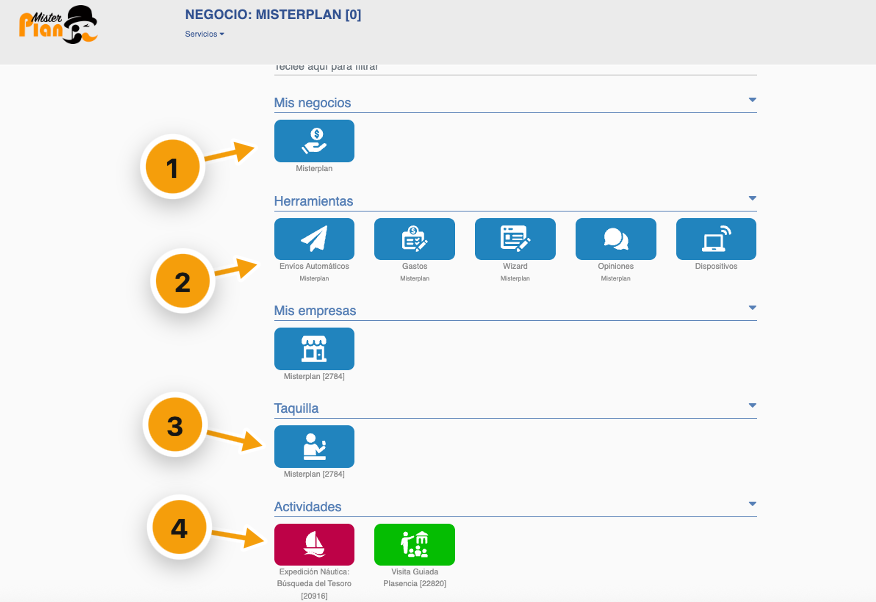
The home screen is your control panel. From here you can reach every area of your business, grouped into themed blocks.
My businesses. Set up activities, box office, transactions, invoicing, statistics and discount codes.
Management tools.
- Automated emails
- Scheduled communications.
- Expenses
- Track the activity's cash flow.
- Wizard
- Set up the packages module.
- Reviews
- Read and reply to your customers' reviews.
- Devices
- Equipment authorised to access the box office.
Box office. Day-to-day operations: bookings, phone bookings, closing sales…
Activities. Settings for each experience.
02 · BOX OFFICE AND BOOKINGS
Change the date or time, or turn it into a gift voucher
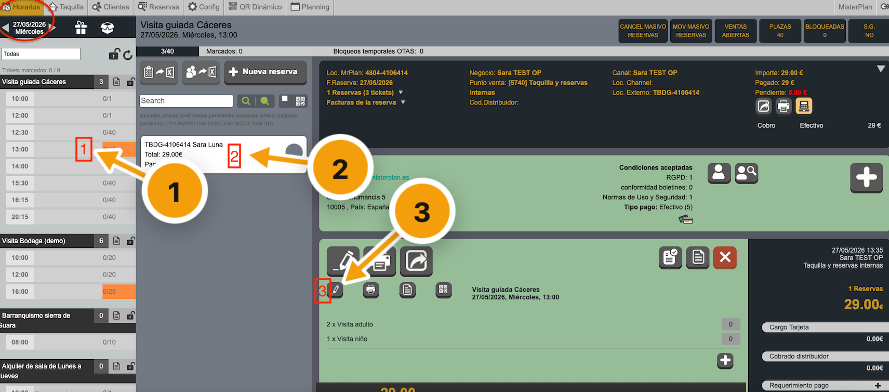
In Box office › Time slots you'll see the bookings for the selected day and time. From there you can manage them, close sales or adjust available capacity.
Select the day and the time slot.
Open the customer's booking.
Click the small pencil.
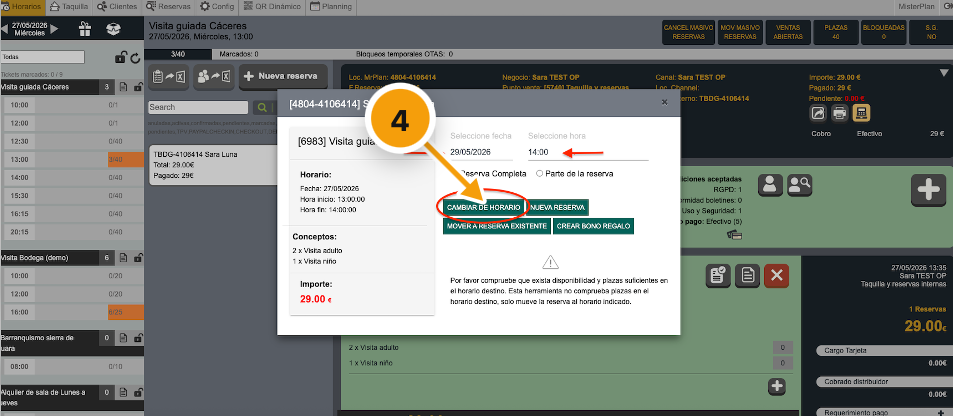
Choose the new date and time and click Change time slot. If you'd rather turn it into a gift voucher, click Create gift voucher.
Note
The voucher isn't sent to the customer automatically: click Resend voucher so they receive it.
03 · BOX OFFICE AND BOOKINGS
Edit participants or ticket type
Use this when the customer changes the number of people or the ticket type. The form fields are already filled in.
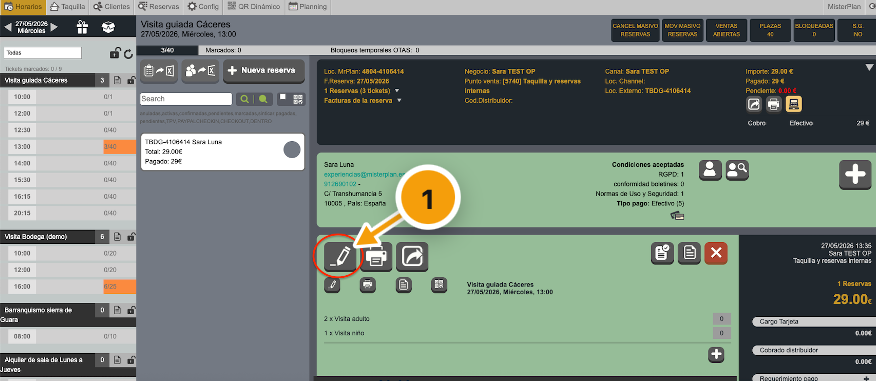
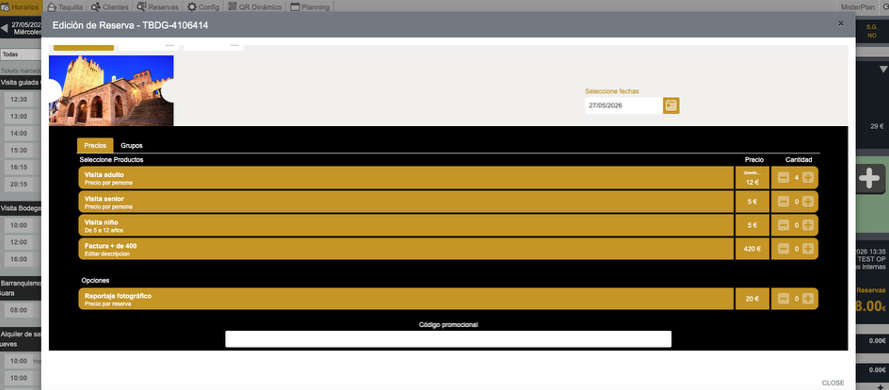
Select the booking and click the large pencil.
Enter what the customer now wants. For example, if 4 people are now going, select 4 × Adult visit.
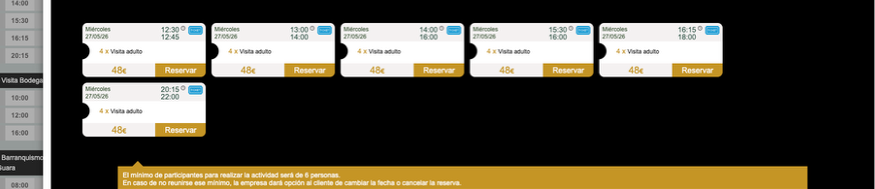
Choose the time slot and click Book.
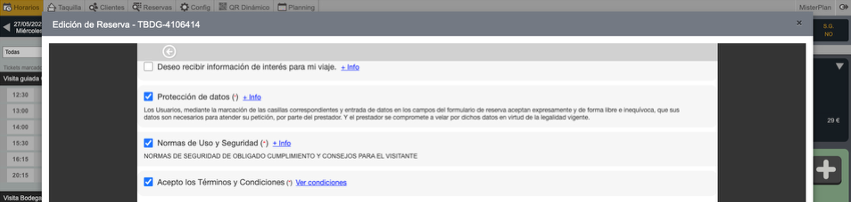
Review the form and accept the terms.
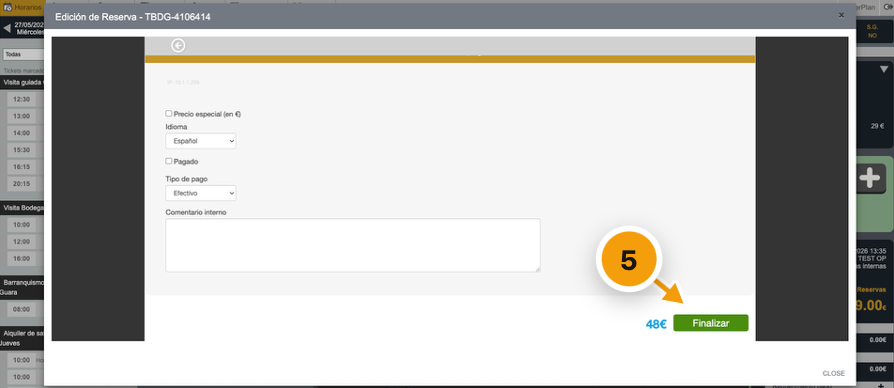
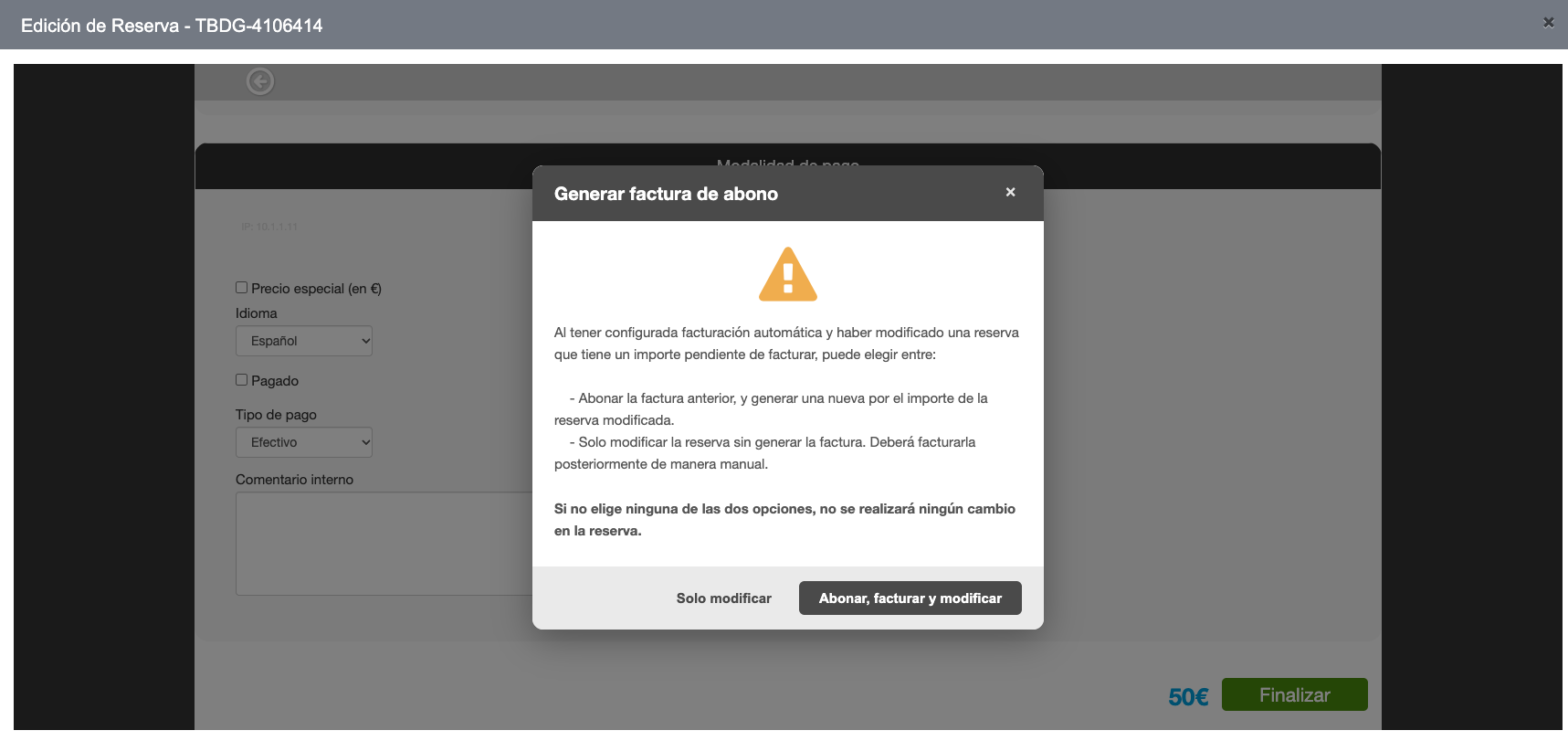
Click Finish without ticking «paid»: the system will update what the customer owes or what needs to be refunded.
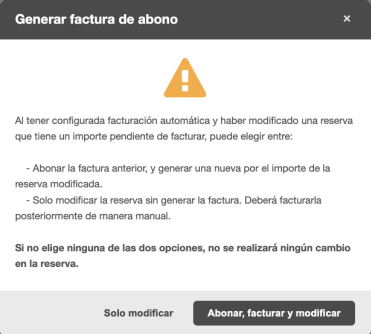
If invoicing is enabled, choose between generating a corrective invoice and a new invoice or modify only (in that case no invoice is generated automatically).
Automatic
When you're done, the updated voucher is resent to the customer.
04 · BOX OFFICE AND BOOKINGS
Cancel a booking
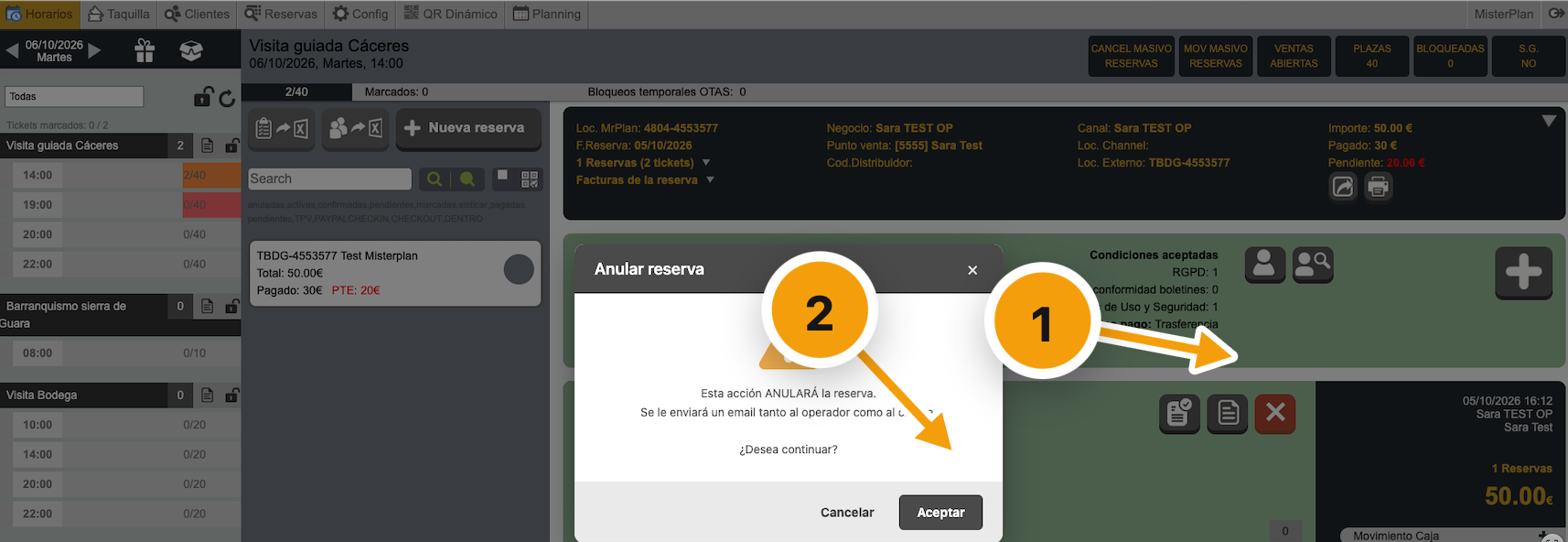
Select the booking and click the red X.
Confirm the cancellation. The place is released and the customer receives a cancellation email.
If invoicing is enabled, a corrective invoice is generated automatically.
Important
Cancelling doesn't refund the money. The refund is handled outside the system, and you then need to record the cash movement.
05 · BOX OFFICE AND BOOKINGS
Close sales and manage capacity
The box office shows the dates and time slots set up for each experience. You can close sales in three ways, depending on the scope.
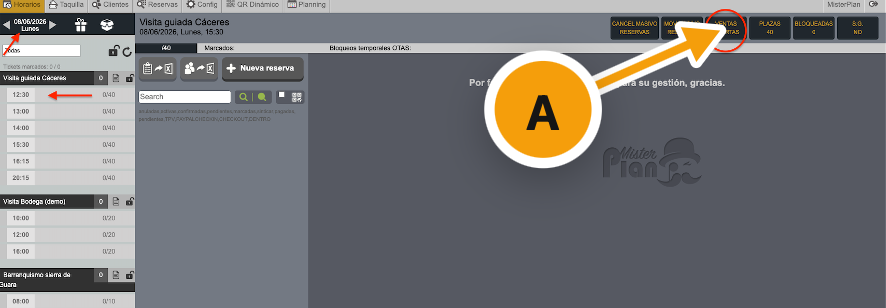
A · ONE TIME SLOT
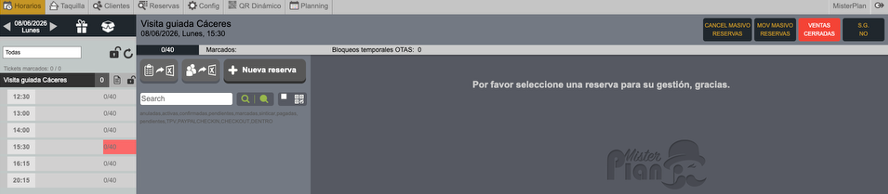
Select the date and time slot and click Sales open. It will switch to «Sales closed».
B · ONE ACTIVITY, ALL DAY
Click the small padlock, to the right of the activity title.
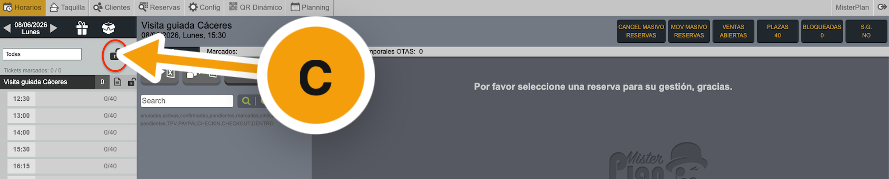
C · ALL EXPERIENCES, ALL DAY
Click the large padlock, next to the date picker.

Increase, reduce or block places
Select the time slot. At the top right you'll find the options Places and Blocked.

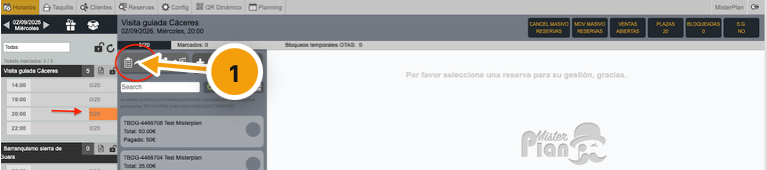
Export a time slot's bookings to Excel
With the time slot selected, click the export icon in the top bar.
06 · BOX OFFICE AND BOOKINGS
Named phone or walk-in booking
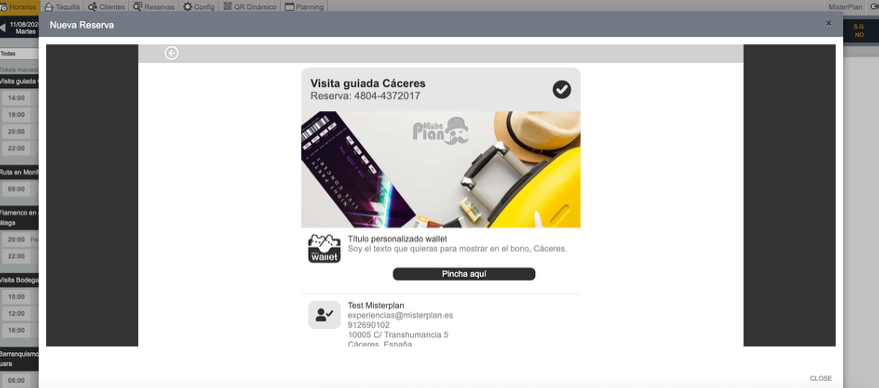
For bookings with customer details. When you finish, the voucher is sent to the email address on the booking.
Select the activity's time slot.
Click New booking.
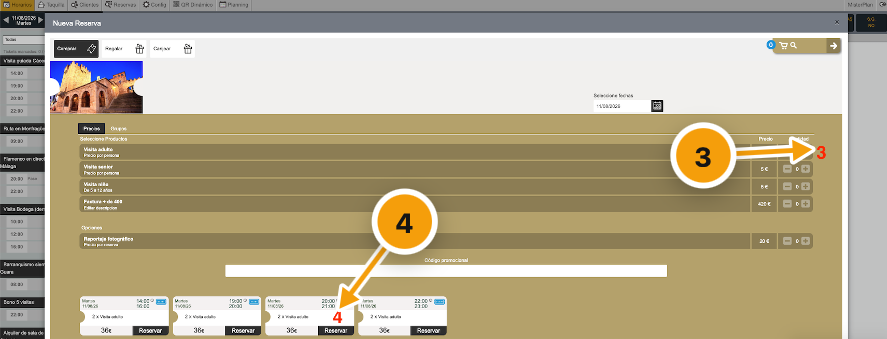
Select the tickets.
Click Book.
Fill in the form with the customer's details.
Accept the terms.
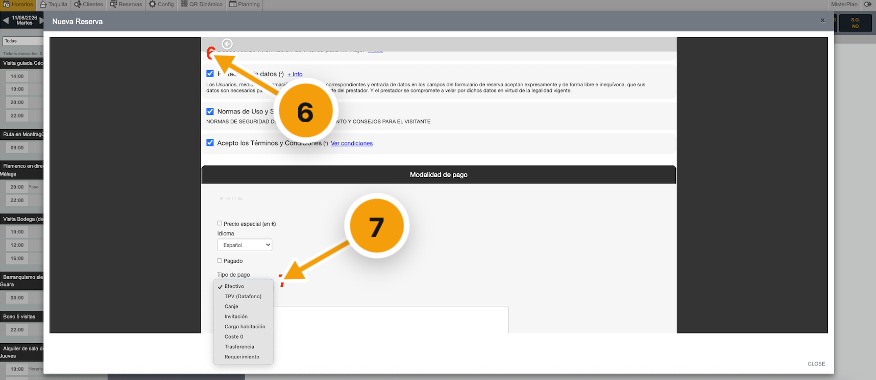
Choose the payment method. If the customer pays on the spot, tick Paid.
Click Finish.


07 · BOX OFFICE AND BOOKINGS
Create a free gift voucher
Ideal for invitations, giveaways or compensation. The voucher reaches your inbox first so you can forward it with a personal message.
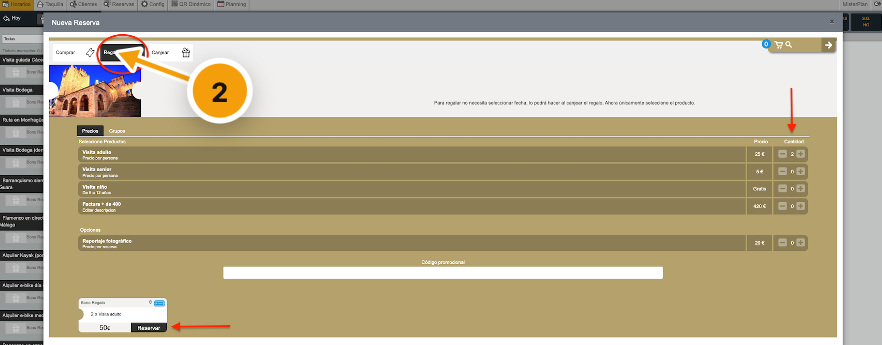
In the box office, click the gift icon and choose the experience.
Click Give as a gift, select the tickets and click Book.
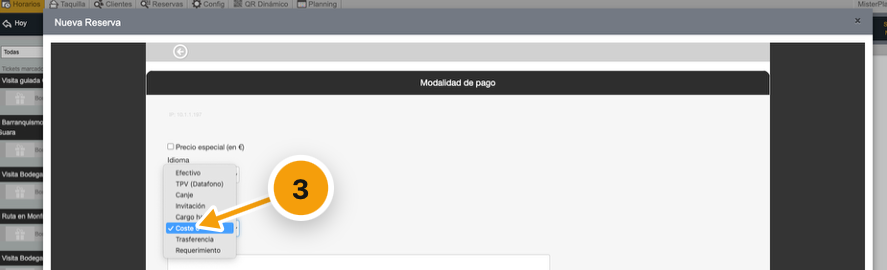
Fill in the form and choose the payment method Zero cost.
In the email field, enter your own: that way the voucher showing the price isn't sent straight to the gift recipient.
You'll receive the voucher with the link Send gift voucher from here. Use it to send it with a personal message.
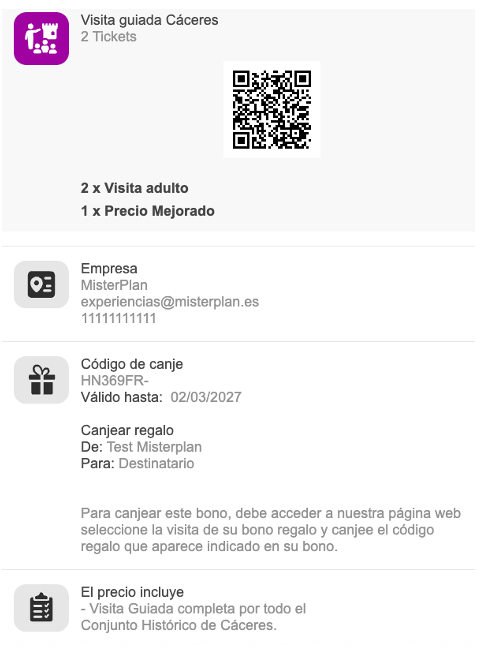
The recipient gets their gift with what it includes, the redemption code, where to redeem it and how long it's valid.


08 · BOX OFFICE AND BOOKINGS
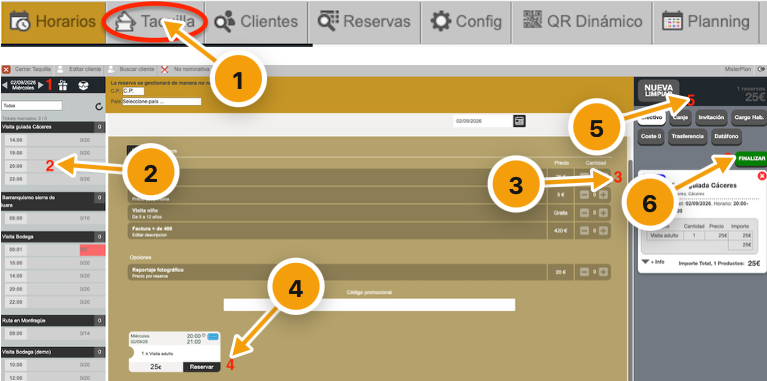
Walk-in sale at the box office
All bookings made in the Box office module are unnamed. The ticket can't be emailed: it has to be printed and handed to the customer.
Open Box office and select the date.
Choose the experience and time slot.
Enter the quantity.
Click Book.
Choose the payment method.
Click Finish.
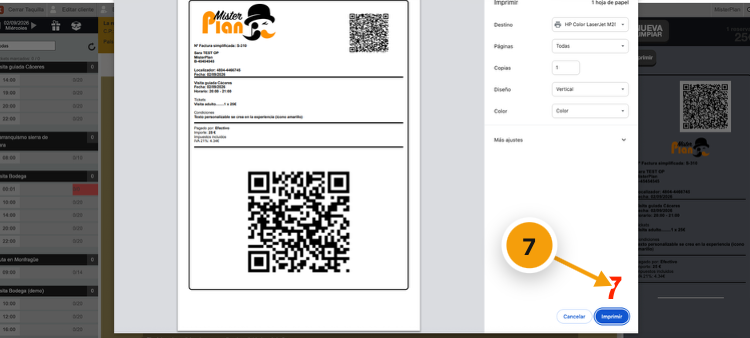
Print the ticket on the thermal printer.
09 · BOX OFFICE AND BOOKINGS
Customers, bookings and planner
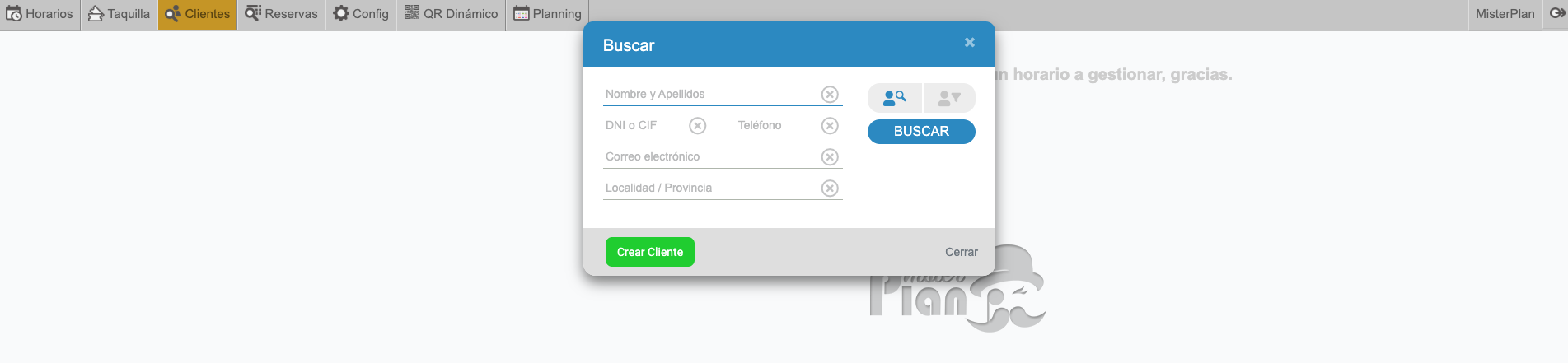
Find customers and bookings
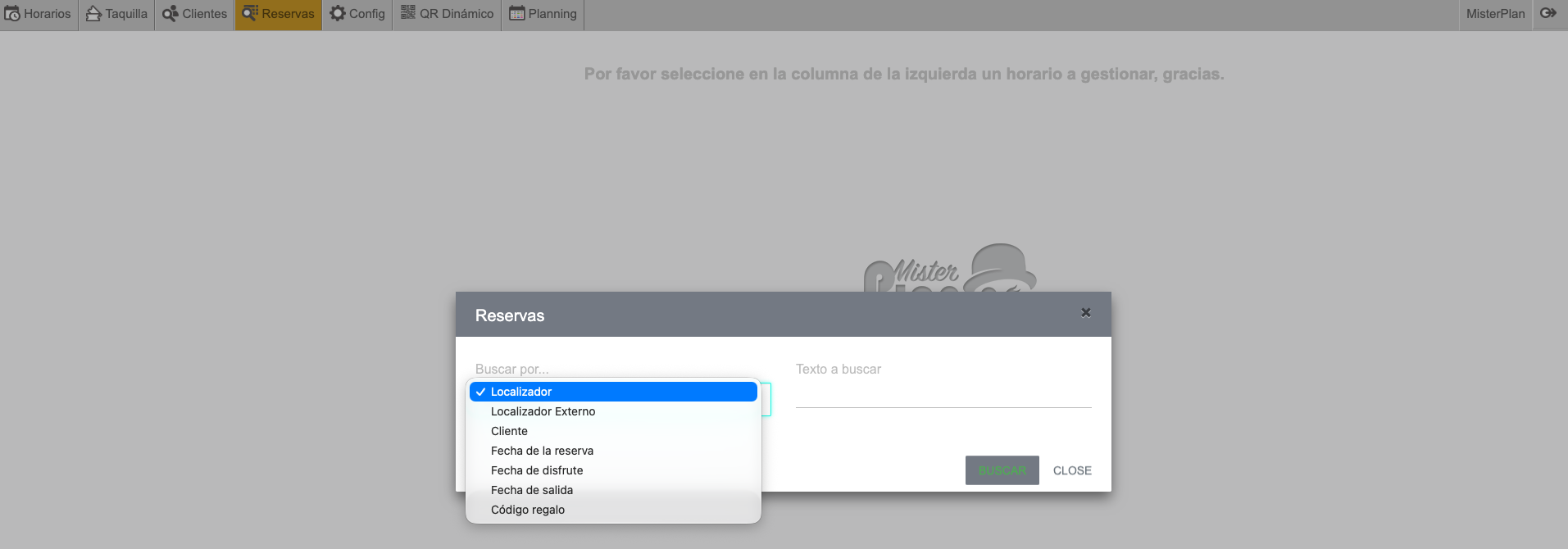
The Customers and Bookings icons let you search by:
- Customer details
- Booking reference
- Booking date
- Activity date
- Gift code
Planner
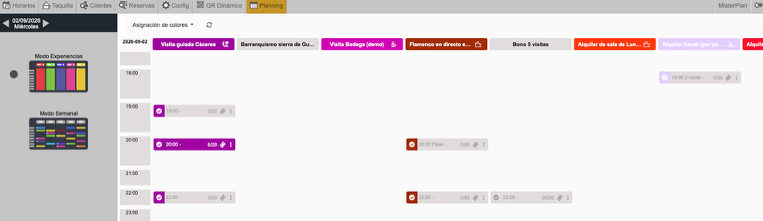
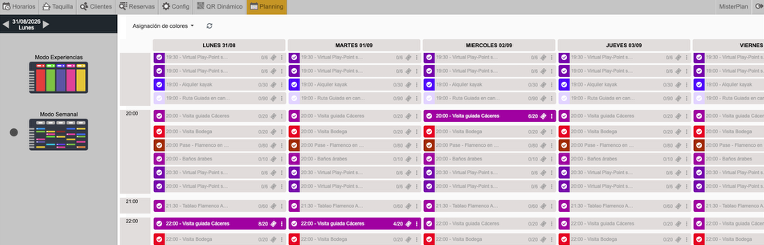
View bookings in daily or weekly view.
10 · PAYMENTS AND CASH DESK
Send a payment request
Send the customer a link to pay online. Requires an integrated virtual POS.
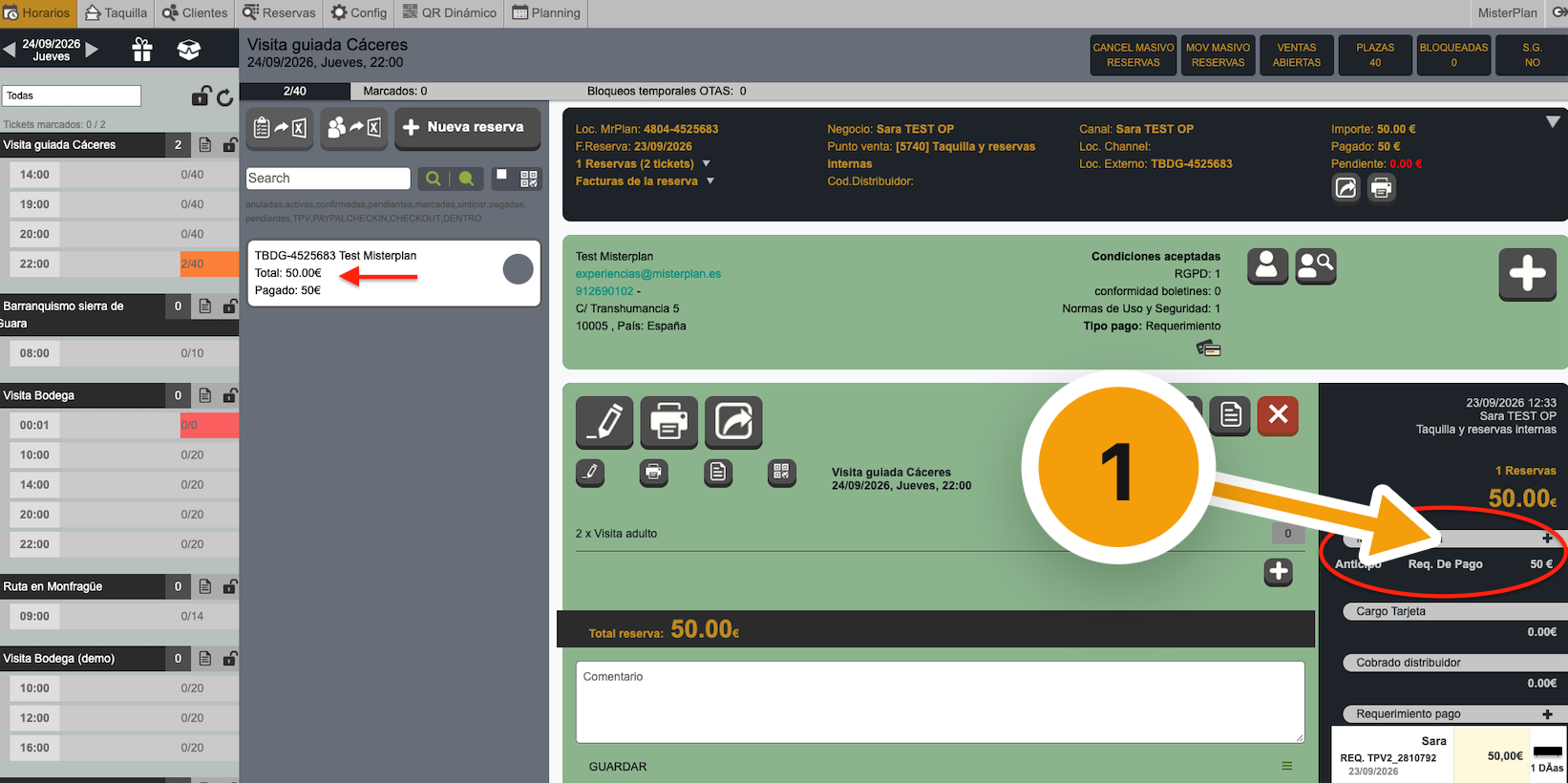
In Box office › Time slots, open the booking and click Payment request.
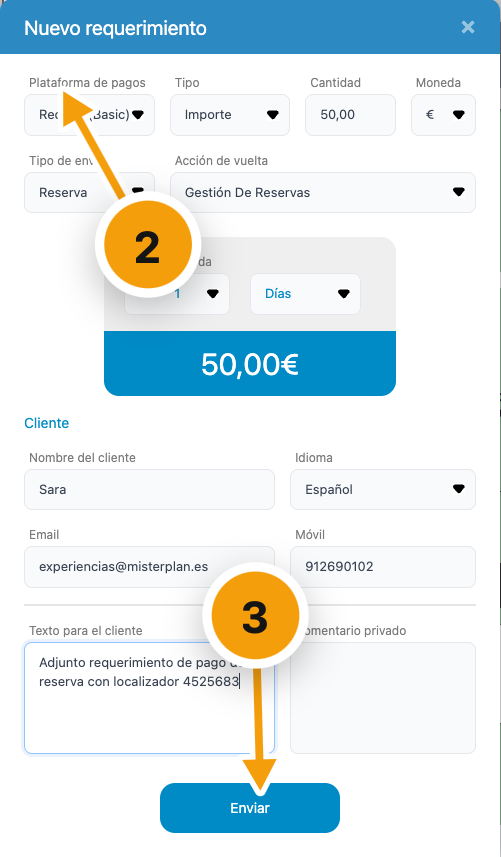
Choose the platform, amount and link lifetime (after that time, it expires).
Optionally add a message for the customer and click Send.
Security
The link can only be opened once. If the customer has already opened it, they'll see «Gateway previously opened · failed» and you'll need to send a new request.
11 · PAYMENTS AND CASH DESK
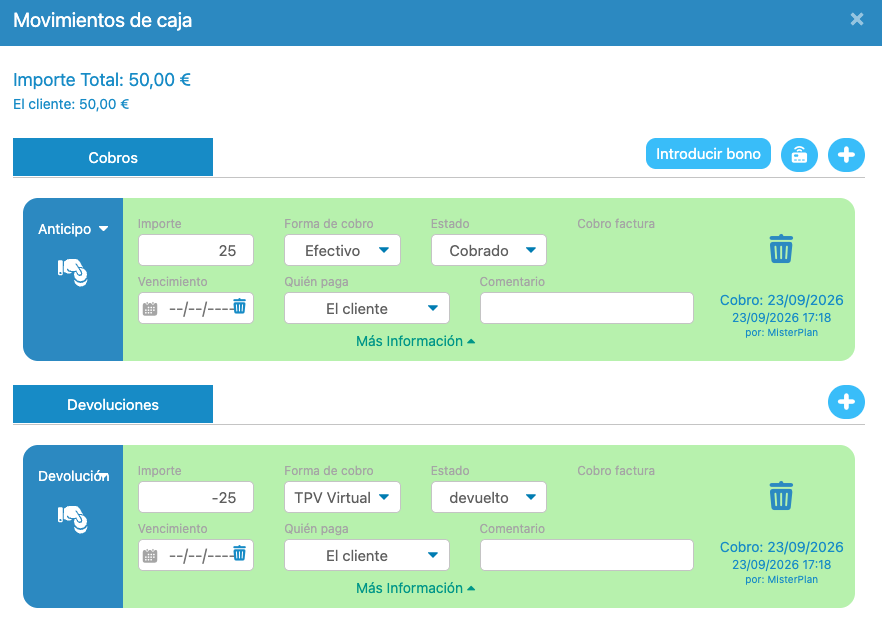
Cash movements
To keep accurate track of income, manually record every transaction that isn't generated automatically.
AUTOMATIC
Bookings paid by virtual POS, payment requests and unnamed box office bookings create their movement automatically.
MANUAL
Cash, card terminal or bank transfer payments for named bookings: record them when you receive the money.
REFUNDS · MANUAL
Every refund is recorded manually, whatever the payment method.
Where are they recorded?
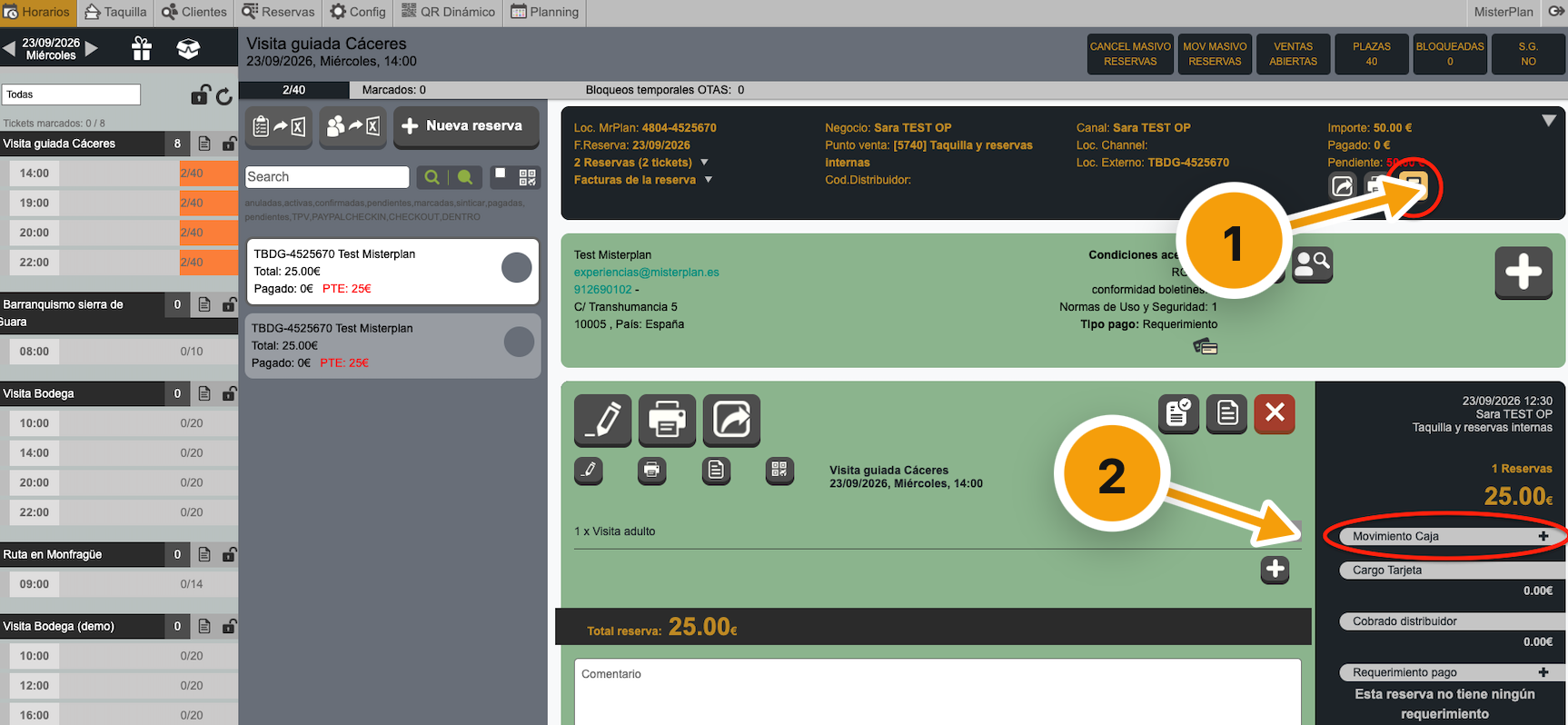
You can add a movement from two places:
The yellow cash desk icon.
The text link Cash movement.
They all appear in Transactions › Cash desk, where you can export them.
Heads up
Virtual POS refunds are processed first in the POS provider's own portal. MisterPlan doesn't refund the money: it only records the accounting entry.
Note
To see the change after recording a movement, click the refresh arrow next to the padlock.
12 · PAYMENTS AND CASH DESK
Refunds with a virtual POS
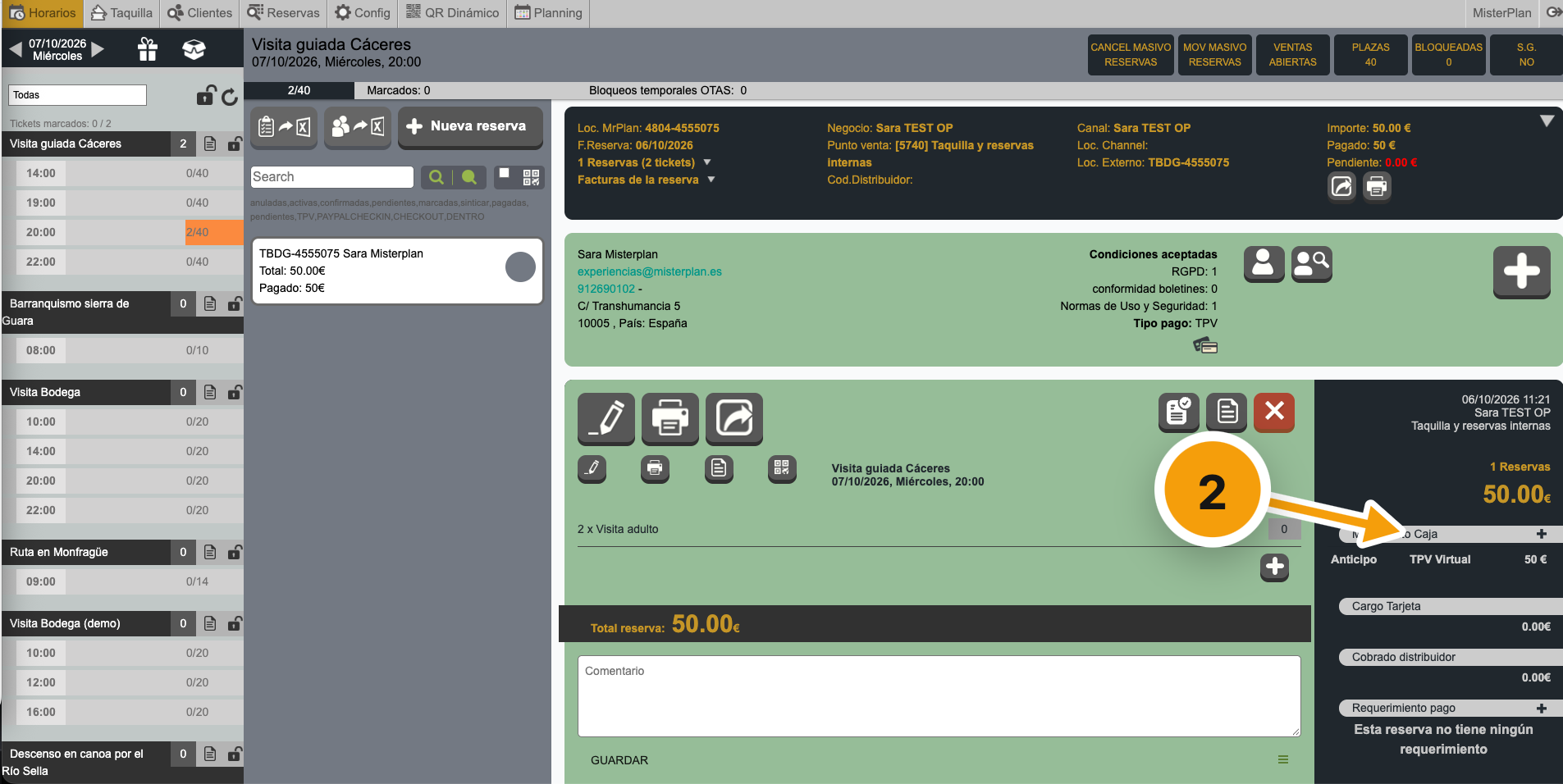
Two steps: process the refund on the payment platform, then record the movement in the box office to keep the cash desk up to date.
EXAMPLE WITH REDSYS
In the box office, find the date the booking was made.
Copy the transaction code, formatted as tpv2_XXXXXX.
Log in to the Redsys portal with your credentials.
In Queries, enter the booking date and find the transaction.
Click the arrows on the right to create and process the refund.
Record the refund in the box office as a cash movement.
Other virtual POS platforms
The process is similar: check the details in the box office, process the refund from the payment platform's dashboard and record it in the box office.
MisterPlan doesn't hold the credentials for your virtual POS platforms.
13 · PAYMENTS AND CASH DESK
Transactions
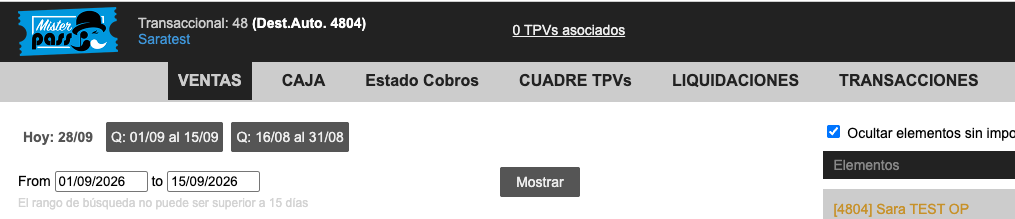
The financial core of the system. It's split into four sections.
Sales
15-day history
All bookings, paid or pending. Filter by booking or activity date, experience, point of sale, discount code, distribution, payment type…
Cash desk
1-month history
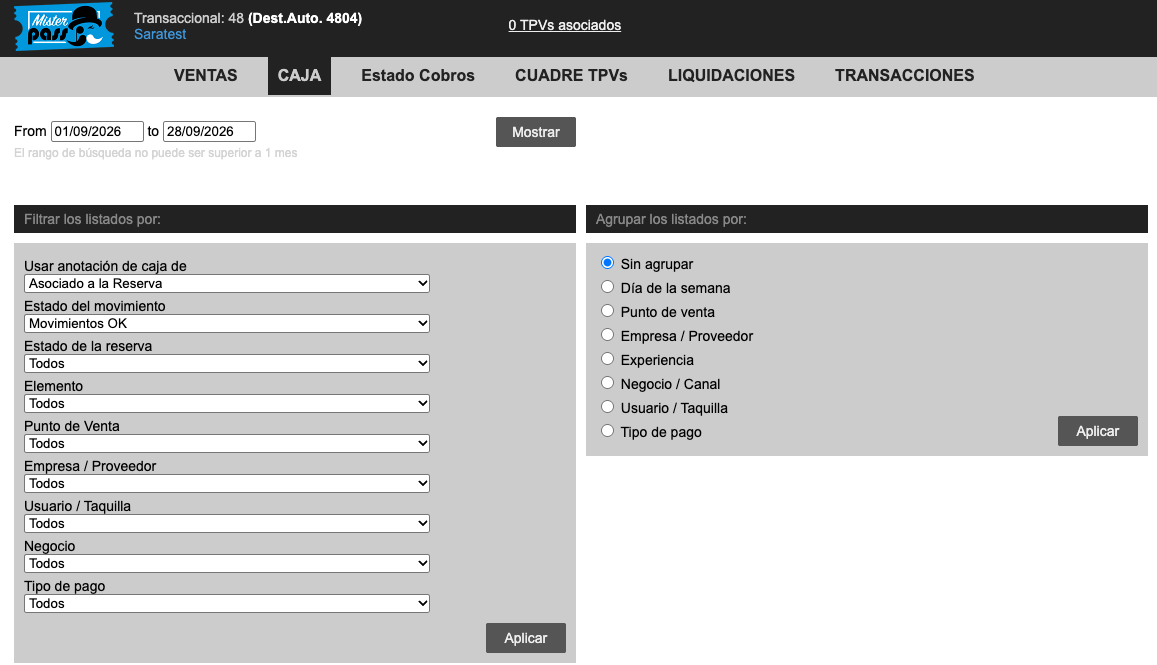
Cash desk control and closing: box office cash movements only. Check its status (e.g. OK) and filter by payment type, experience and point of sale. Filtering by activity date isn't available.
Payment status
Bookings pending payment.
Transactions
Operations processed by the POS, plus unfinished or failed (KO) bookings.
Keep in mind
Refunds, detailed queries and any advanced gateway management are handled from your bank's portal.
POS reconciliation and settlement management aren't currently available.
14 · PROMOTION AND CONTROL
Discount codes
They're created from My businesses. Click +, type the code and check it with the blue icon: if the field turns green, the code is available. The discount can be a percentage or a fixed amount in euros.
Euros vs. percentage
A discount in euros applies to the booking total, not per person. If you want the saving to grow with the number of people, use %.
2 people · −€5 · −€5
10 people · −€5 · −€5
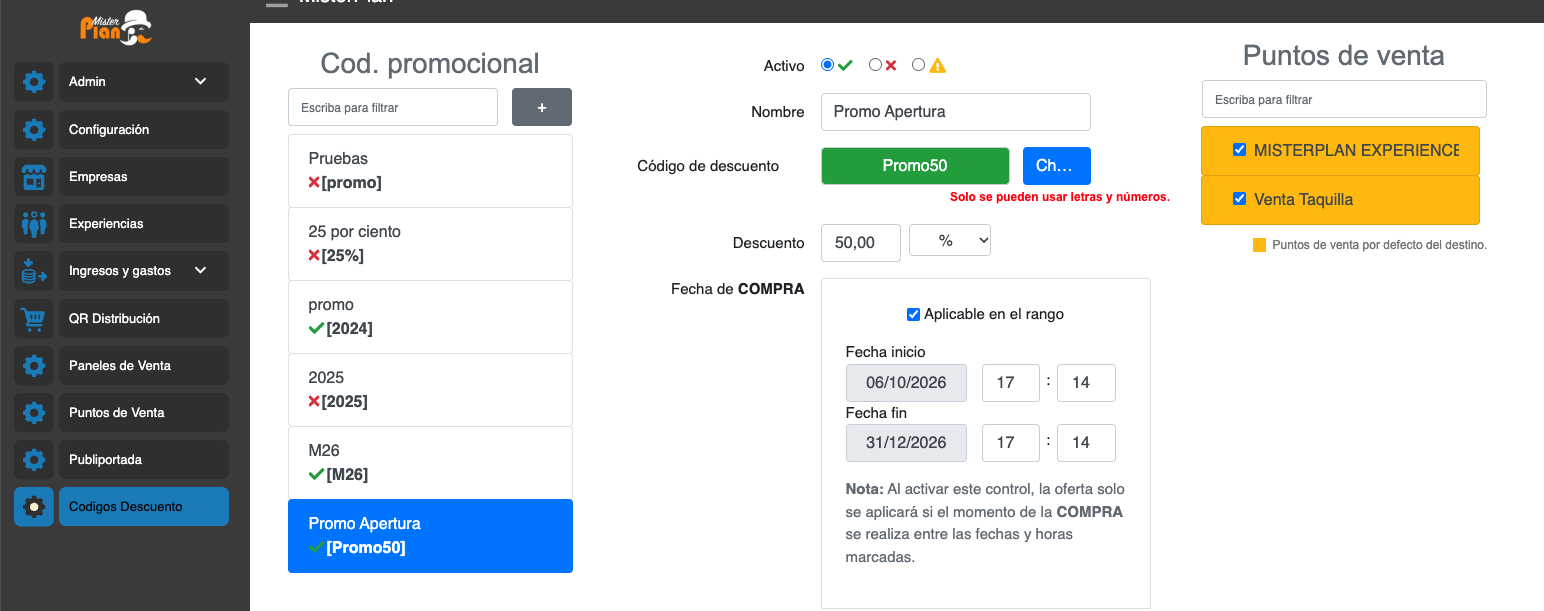
Purchase date · required
Date range during which the code can be used to buy or book.
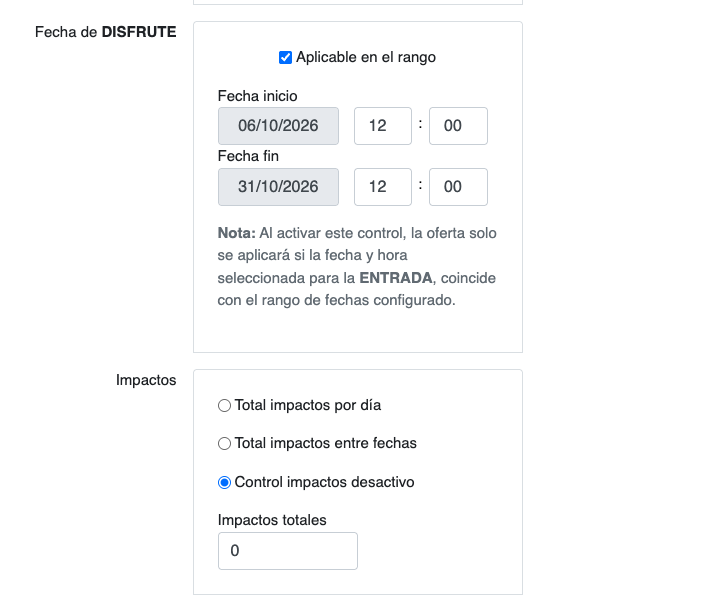
Activity date · optional
Limits the code to activities taking place on those dates.
Total uses
How many times it can be used, per day or within a date range. Turn it off if you don't want a limit.
Activities and gifts
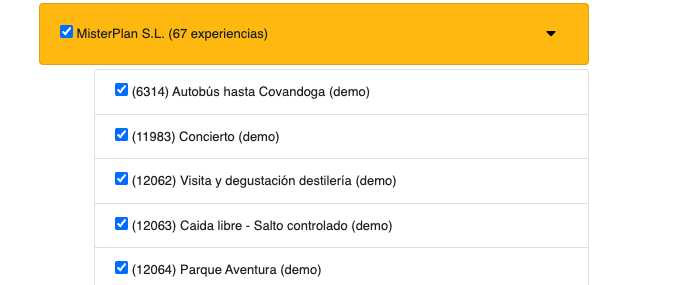
Choose which activities the code works for, and whether it also applies to gift vouchers.
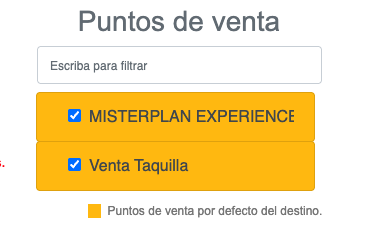
Points of sale
Website, box office (internal bookings) or both.

15 · PROMOTION AND CONTROL
MisterPlan Alert app
The app for validating tickets by scanning the QR code. It has two access levels.
Main phones
Edit activities, access the box office and scan QR codes.
Authorisation: contact the MisterPlan team.
Staff
Only see bookings for their assigned activities, dates and time slots, and scan QR codes. Can be restricted to scanning only.
Authorisation: granted by the administrator from the platform.
Before installing
Phones must be authorised in the system before downloading and installing the app. If in doubt, call our phone support.
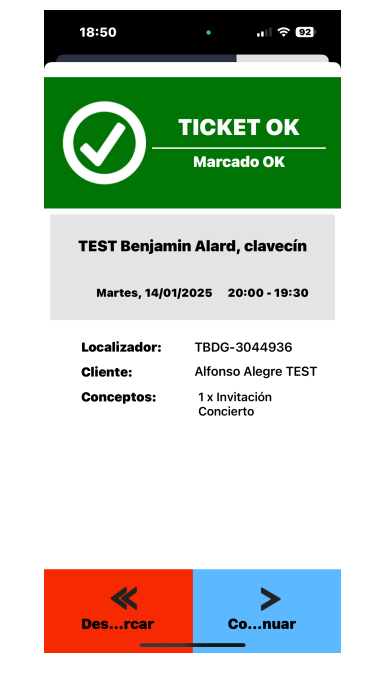
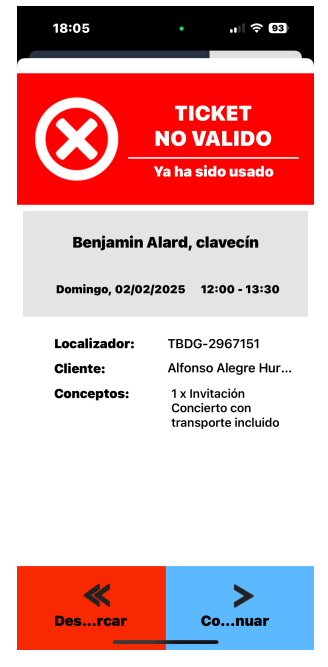
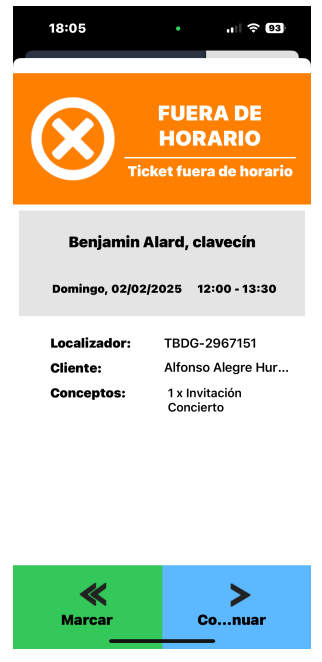
The three responses when scanning
Ticket OK
The QR code is valid (date and time).
- Continue
- Validates entry and opens the camera for the next one.
- Unmark
- Cancels the validation if the customer doesn't go in after all.
Invalid ticket
The QR code has already been used.
- Unmark
- Only to correct the scan and allow entry again.
- Continue
- Keep scanning without making changes.
Outside time slot
The date or time doesn't match.
- Mark
- Grants entry as an exception and uses up the QR code.
- Continue
- Skips validation without recording the entry.
16 · PROMOTION AND CONTROL
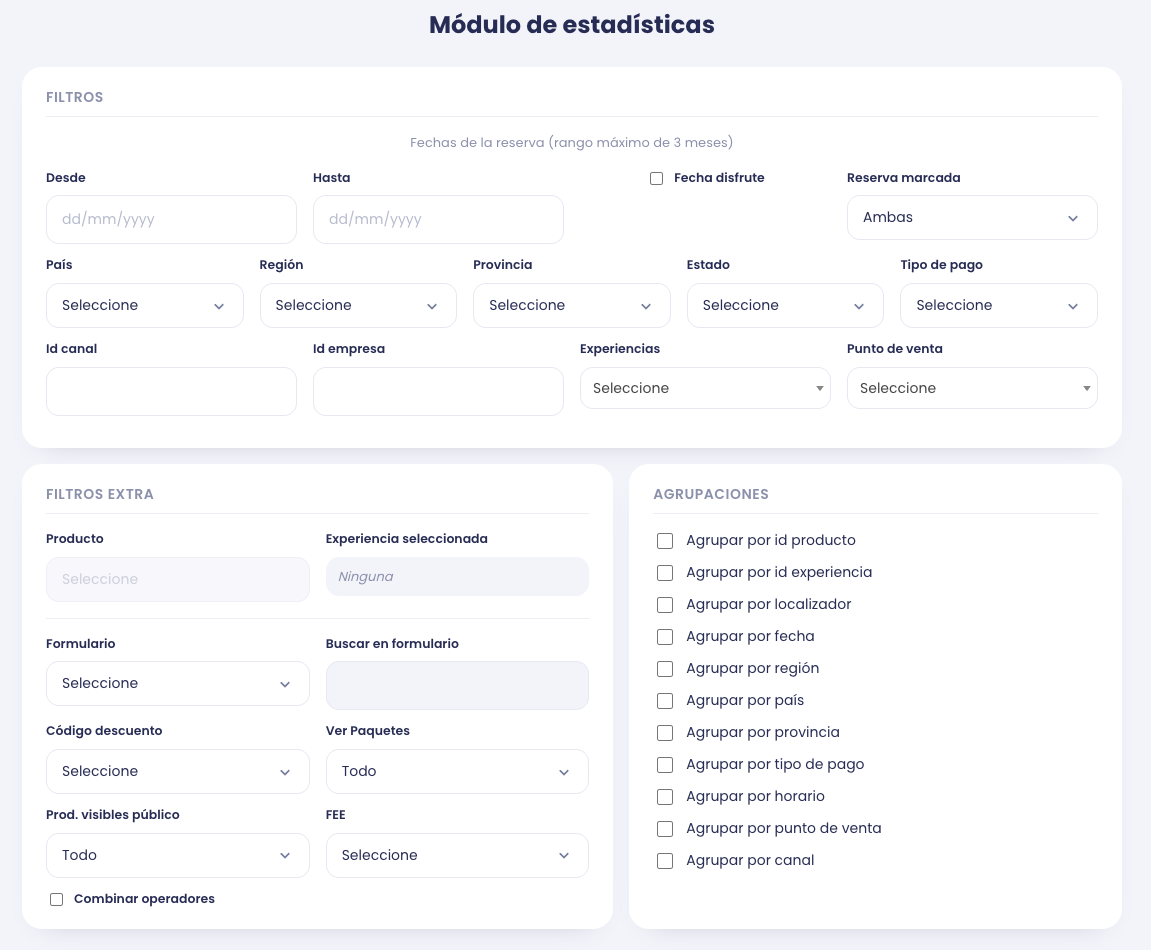
Statistics module
Detailed tracking of your booking performance, analysed by multiple criteria.
Date range
Up to 3 months per query, by booking or activity date.
Filters
Booking status, payment type, point of sale, sales channel and company ID.
Group by
- Product ID (ticket)
- Booking reference
- Date and time slot
- Region, country, province
- Payment type
- Point of sale and channel
Export to CSV
Every report can be downloaded as CSV to work with in a spreadsheet.

17 · INVOICING
Activate VeriFactu
MisterPlan is a SIF*, so its invoicing module is always connected to VeriFactu. Activation is requested from MisterPlan.
Customer responsibility
Reviewing submitted invoices and resolving any issues. MisterPlan shows the status of each one (submitted, in progress or rejected) so you can resubmit it.
*A SIF (computerised invoicing system) is software, or a combination of hardware and software, that issues and manages electronic invoices while guaranteeing their tax validity, integrity and retention. It is regulated by Royal Decree 1007/2023 and must ensure record traceability, including a digital fingerprint (hash) and a QR code on every invoice.
Send MisterPlan an email with
- Tax details
- Company name, tax ID (CIF) and registered address.
- Invoicing type
- Automatic by booking date, automatic by activity date, or manual.
- Default invoice
- Full or simplified (recommended). For simplified invoices, specify the maximum amount: above it, a full invoice is issued.
- Series
- For full, simplified and corrective invoices.
18 · INVOICING
Invoicing options
AUTOMATIC
By booking date
The invoice is generated and sent when the booking is made, and is included in the customer's voucher.
AUTOMATIC
By activity date
It's generated at 00:01 on the activity date and sent automatically.
MANUAL
Manual invoicing
You decide which bookings to invoice, from the box office or from «View bookings».
Important
A booking's payment status doesn't affect invoicing.
Additional settings
Simplified invoices
You can set all invoices to be issued as simplified.
Amount limit
If a booking exceeds it, a full invoice is issued.
Exclude channels
With the channel manager, bookings from the specified channels don't generate an invoice.
Company register details
Send us a text (max. 250 characters) for the footer of every invoice.
Series · maximum 3
Default (full or simplified), additional (full or simplified) and credit/corrective. You can also use a single series for everything except corrective invoices.
Taxes
You can set the VAT rate per ticket, itemised on the invoice. Let us know if you use different rates.
19 · INVOICING
Invoice management
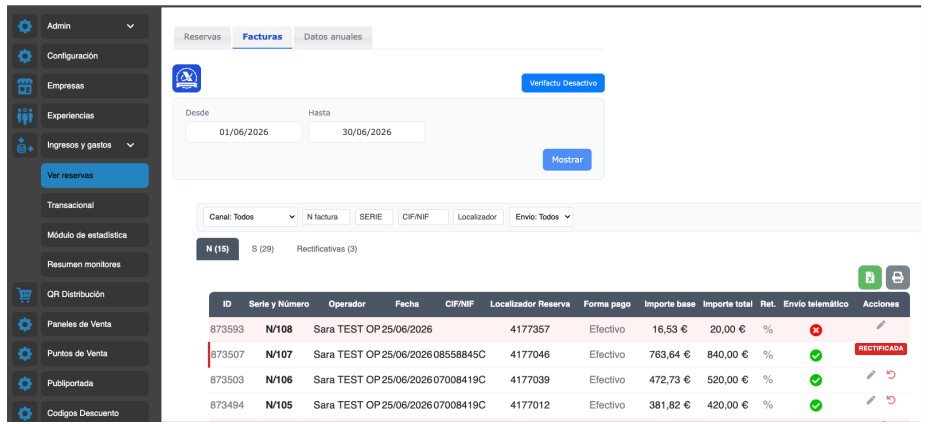
Everything is done from Income and expenses › View bookings › Invoices.
List and export
View and filter invoices, export them and check whether they've been submitted to VeriFactu. If not, you can resubmit them.
VeriFactu submission statuses
Submitted
Submission OK.
In progressAwaiting confirmation.
RejectedCheck the error (incorrect data, connection issues…), fix it and resubmit the invoice manually.
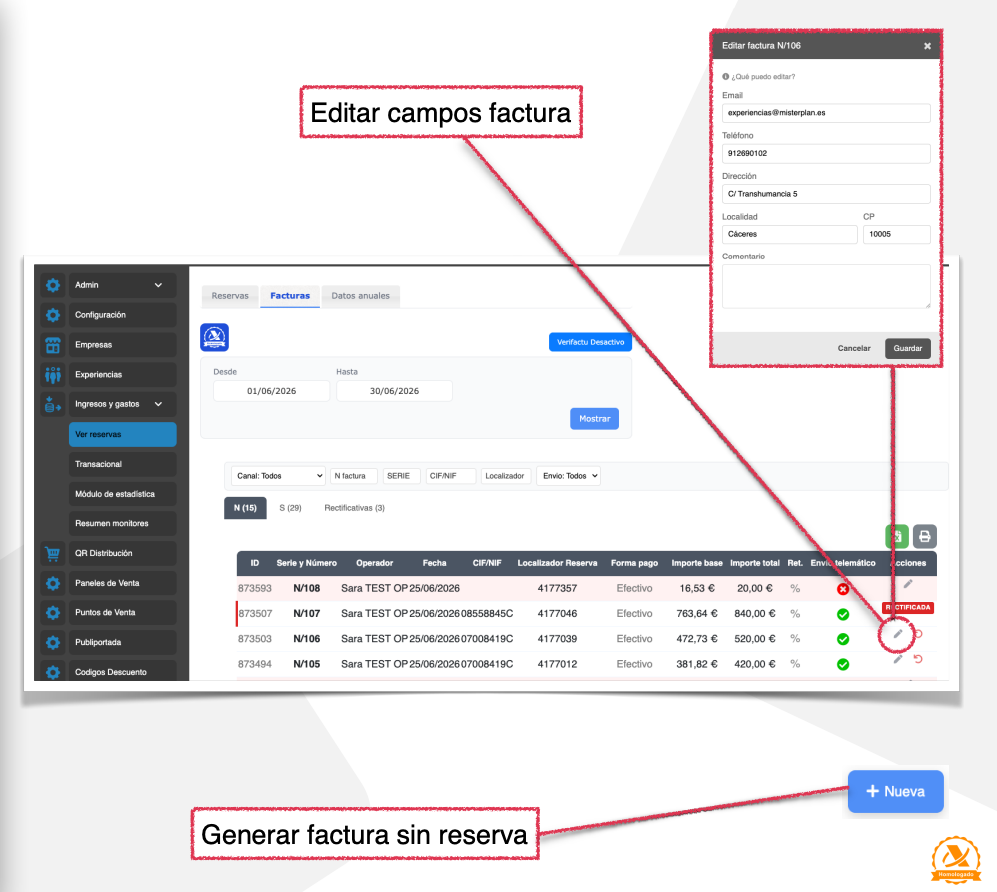
Invoice without a booking
Click + New to issue a simplified or full invoice not linked to a booking, within the existing series.
Edit invoice fields
From Actions you can change the address, email and phone number, or add a comment to an existing invoice.
20 · INVOICING
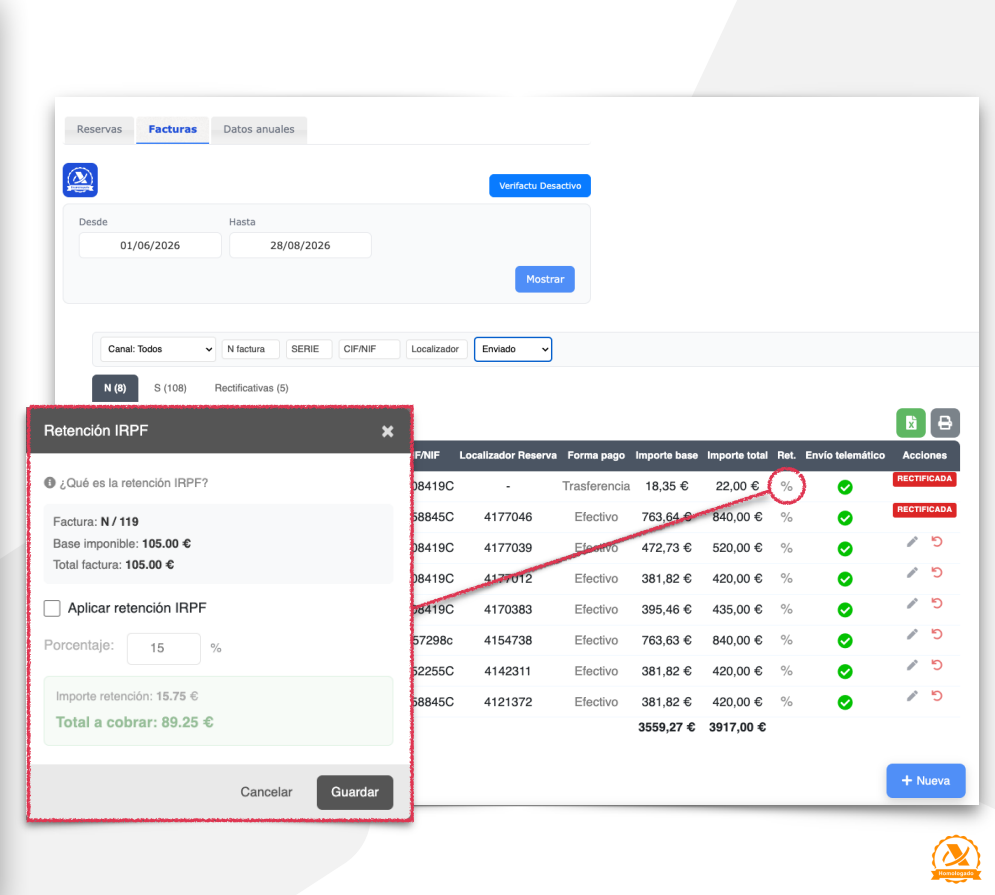
Income tax withholding (IRPF)
It's a percentage the payer deducts from the invoice amount and pays to the tax authority on behalf of the issuer, as an advance on income tax. It's common on invoices between professionals or self-employed workers and companies.
- 15%
- Standard rate
- 7%
- Newly self-employed
When withholding is applied, the amount to collect is lower than the invoice total: the payer pays the difference directly to the tax agency (AEAT).
21 · INVOICING
Already invoiced bookings
Golden rule: to issue a new invoice for an already invoiced booking, the corrective invoice is generated first.
Edit line items
Change tickets, date or time. If you choose Credit, invoice and modify, a corrective invoice and a new invoice are generated. With Modify only, nothing is invoiced.
From simplified to full invoice
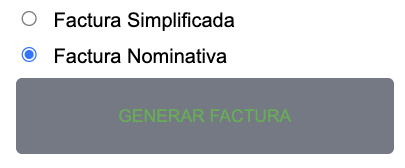
If the customer requests a full invoice: check their details, generate the corrective invoice and issue the new one. The system will let you choose between simplified and full.
Force invoices
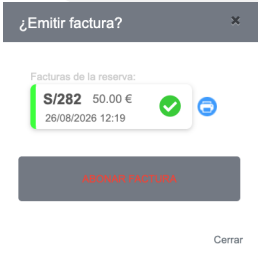
If the booking already has an invoice, you can generate the corrective invoice and then a new one, simplified or full.
Edit customer details
From Edit customer you can update the tax details and issue a new invoice with them — always after the corrective invoice.
Need help?
Our support team is here to help with any question.